WattLoft User Manual
Last updated: 26 August 2026
WattLoft is a hosted Tesla dashboard. One account gives you the web app at connect.wattloft.com, the apps for iPhone, Mac and Apple Watch, and the WattLoft app for Homey — all windows onto the same cars, history and settings. It is free during early access. This manual walks through every screen in the order you meet it. Type in the search box (or press /) to filter the manual to the sections that mention what you are looking for. WattLoft is not affiliated with Tesla; “Tesla” is a trademark of Tesla, Inc.
1Getting started
Three things stand between you and a live dashboard: an account, a connected Tesla login, and — for commands and live streaming — the virtual key on each car. Nothing is installed anywhere; your account is the whole installation.
Create your account
Open connect.wattloft.com
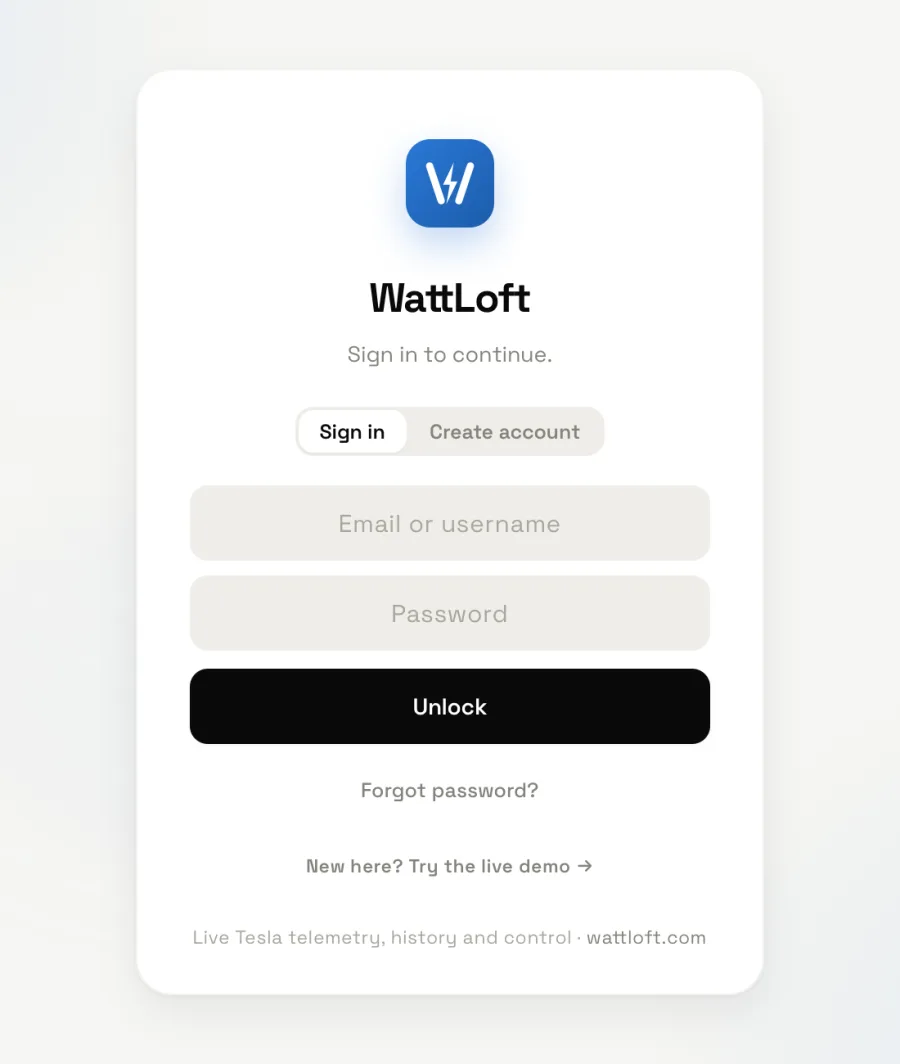
The sign-in card offers Sign in and, while sign-ups are open, Create account. Enter an email address and a password of at least eight characters; a name is optional.
Press Create account
You are signed in straight away — there is no verification step — and a welcome email arrives. The dashboard is empty until a car is connected.
Forgotten password?
Forgot password? on the sign-in card emails a reset link. The link is valid for 60 minutes; the card says “If that address has an account, a reset link is on its way” whatever you typed, so nobody can use it to find out which addresses have accounts.
Connect your Tesla
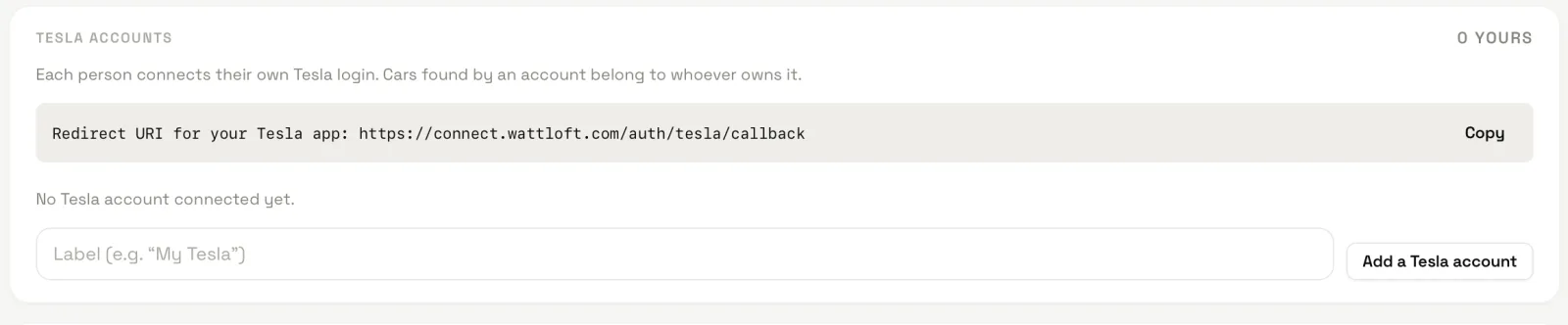
Go to Settings → Tesla accounts. Each person connects their own Tesla login; the cars a login finds belong to that person, who can then share them (section 11).
Add a Tesla account
Give it a label (“My Tesla”) and press Add a Tesla account.
Choose the region
Europe / ME / Africa, N. America / APAC or China — the region your Tesla account lives in.
Sign in with Tesla
Sign in with Tesla opens Tesla’s own sign-in page. You sign in there and approve access to vehicle data, location, vehicle commands and charging commands. WattLoft receives tokens from Tesla — your Tesla password never touches WattLoft. If the card asks for a Client ID and Client secret, those come from a Tesla developer application at developer.tesla.com, registered with the Redirect URI shown on the card (
https://connect.wattloft.com/auth/tesla/callback).Your cars appear
Every vehicle on that Tesla account shows up in the car switcher within a minute. Re-connect and Disconnect live on the same card; disconnecting stops all collection immediately.
Pair the virtual key
Tesla requires a virtual key on the car before a third-party service may send it commands or configure live streaming. Cars from about 2021 onwards refuse plain commands outright (“Tesla Vehicle Command Protocol required”); WattLoft signs every command with its key, and the car only honours it once you have approved that key.
Open the pairing link on your phone
On the dashboard, an unpaired car shows an amber ⚠ Add virtual key badge and a bar with an Add key button; Settings has the same list under Virtual key. The link is
https://tesla.com/_ak/connect.wattloft.com.Approve in the Tesla app
Open it on a phone that has the Tesla app, with that car selected, standing near the car, and approve. Repeat for each car.
Press Check again
WattLoft asks Tesla for the key status right away; the badge disappears when the key is paired. Streaming is then switched on for the car by itself (section 15).
First data
WattLoft reads a car only while it is awake, and never wakes a car just to read it — a sleeping car stays asleep. If your car is asleep when you connect, the dashboard says “No data yet”: press Wake & read once. Charging history comes from Tesla’s own records and appears within a few hours; weather for a parked car appears within the hour; drives and battery-health measurements build up as you use the car.
The demo
connect.wattloft.com/demo (or Try the live demo on wattloft.com) drops you into a real Model S with anonymised data. Everything is readable; anything that would change something answers “This is the read-only demo — controls and settings are off.” The theme you pick is not saved, and AI questions come from a small pool shared by every visitor.
2The dashboard
The dashboard is the first tab and the one that moves: cards re-paint the moment the car reports something new, and on a streaming car that is every second.
Choosing a car
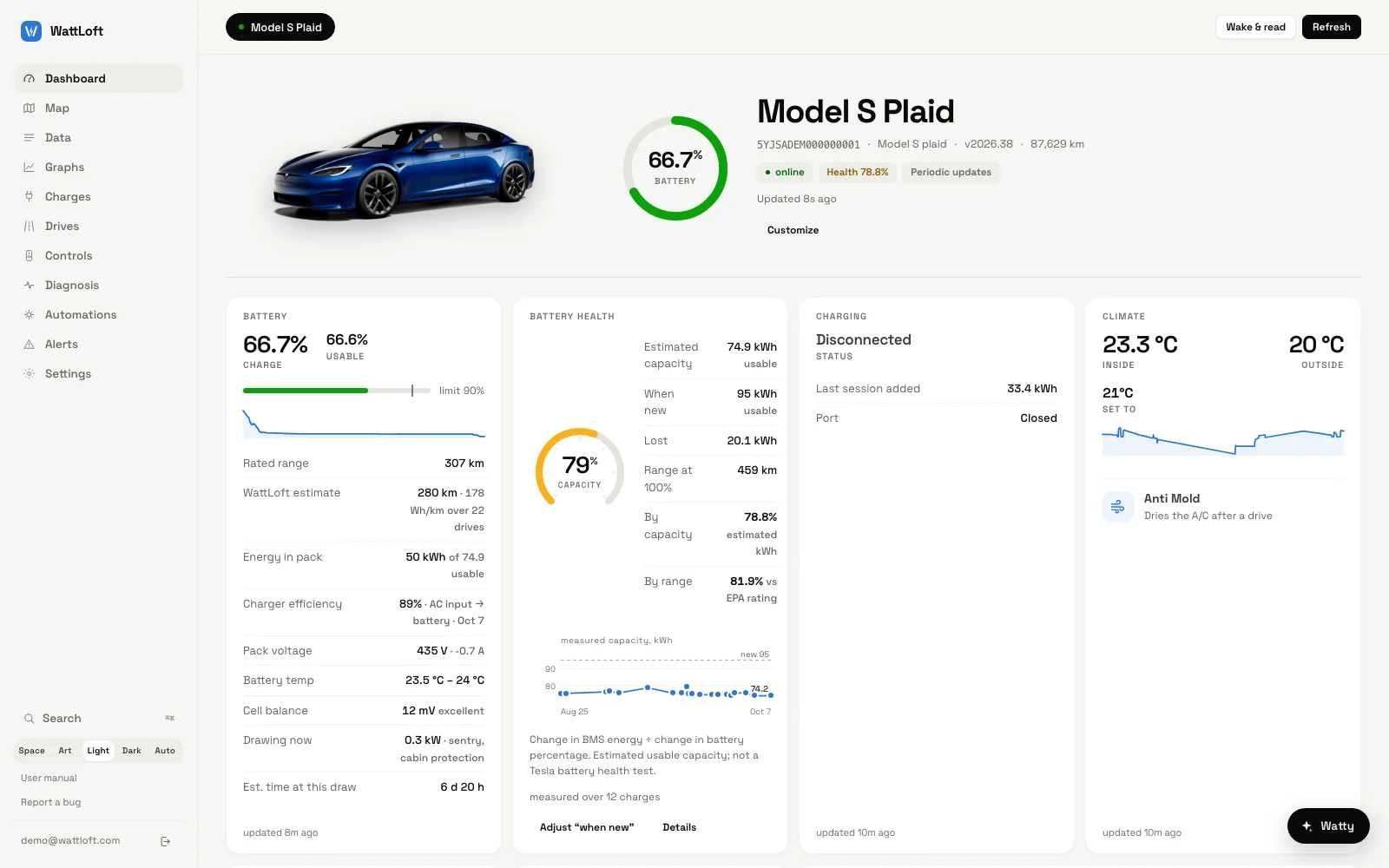
On a desktop the top bar shows one pill per car — a state dot (green online, grey asleep, red offline), the name and the charge. On a phone with more than one car the pills collapse into a single button that opens a list; each row there also carries a status word: Driving (with the speed while moving), Charging, Parked, Asleep or Offline. The last car you looked at is remembered.
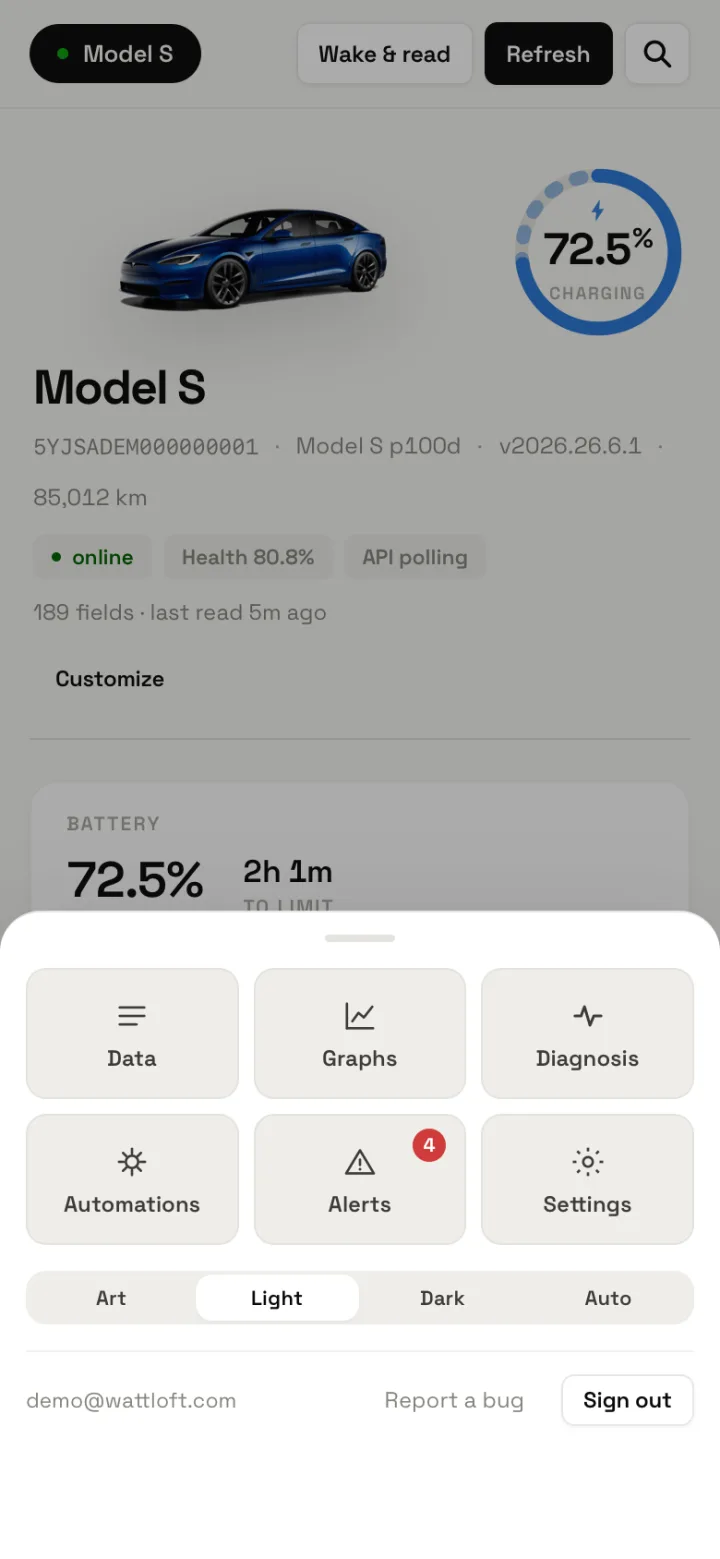
On phones the navigation is a bottom bar — Dashboard, Map, Charges, Drives, Controls, More — and More opens a sheet with Data, Graphs, Diagnosis, Automations, Alerts, Settings, the theme switch and sign-out.
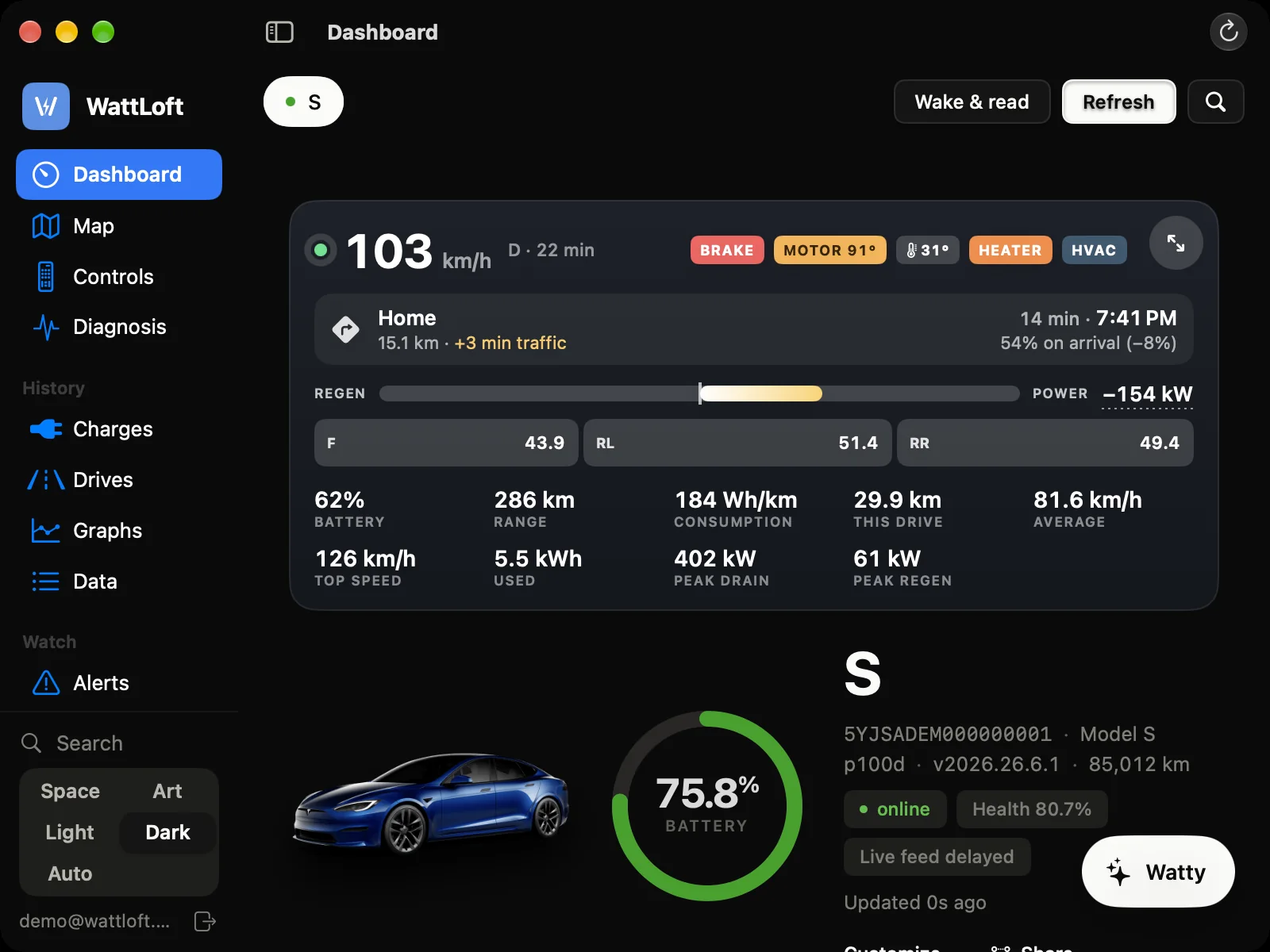
The hero
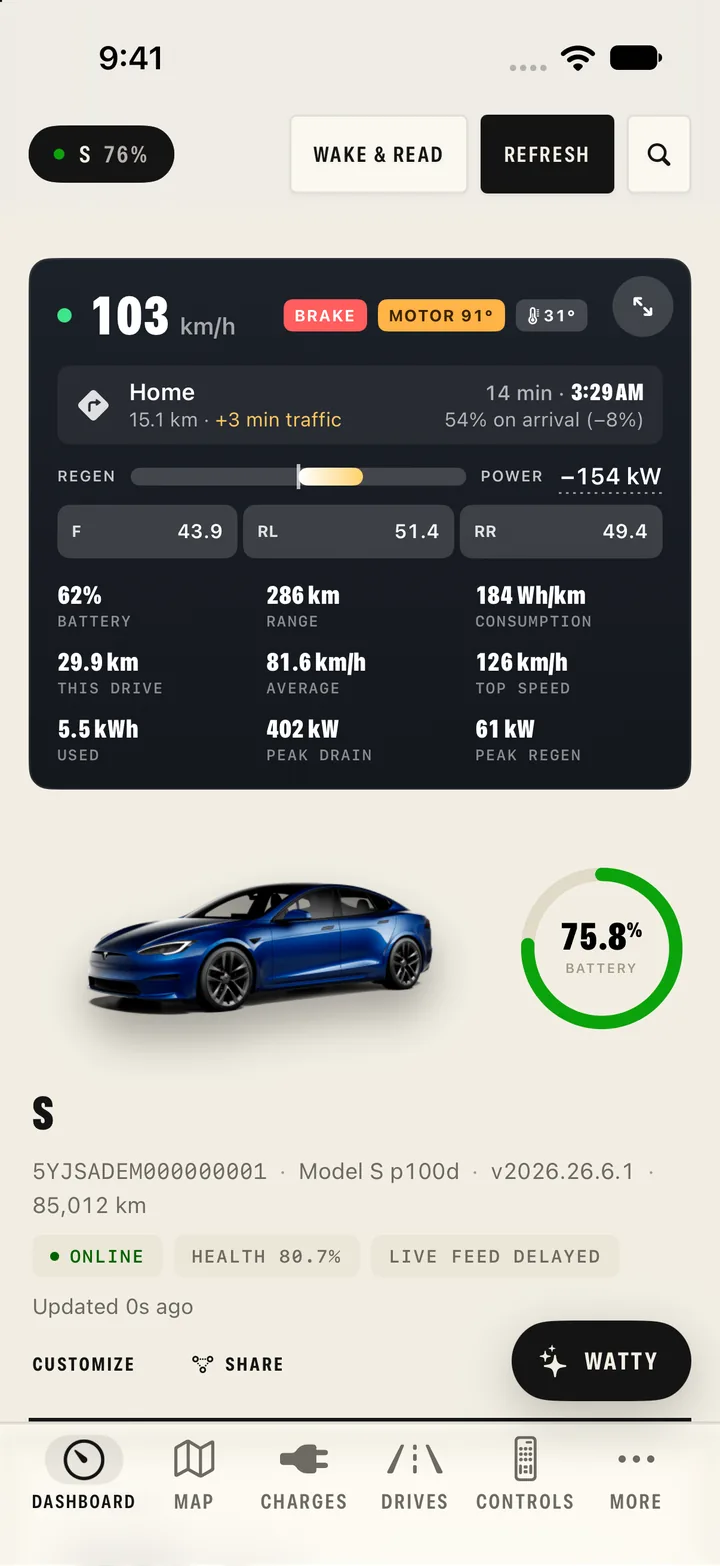
The car’s photo (drawn from its real paint, wheels and trim), the battery ring, the name, VIN, model and trim, firmware version and odometer, then badges: the state, Health NN%, Update … when a software update is waiting, ⚠ Add virtual key when the key is missing, and the data pipe — ● Live telemetry, Streaming · asleep or Periodic updates (section 15). Under them: when the car was last read (Updated 2m ago; hover it for how many readings it sent), plus Customize and Share.
The cards
A card only appears when the car reports something for it, so the set varies by car. In default order:
- Driving (while in motion) — the live driving strip; see section 3.
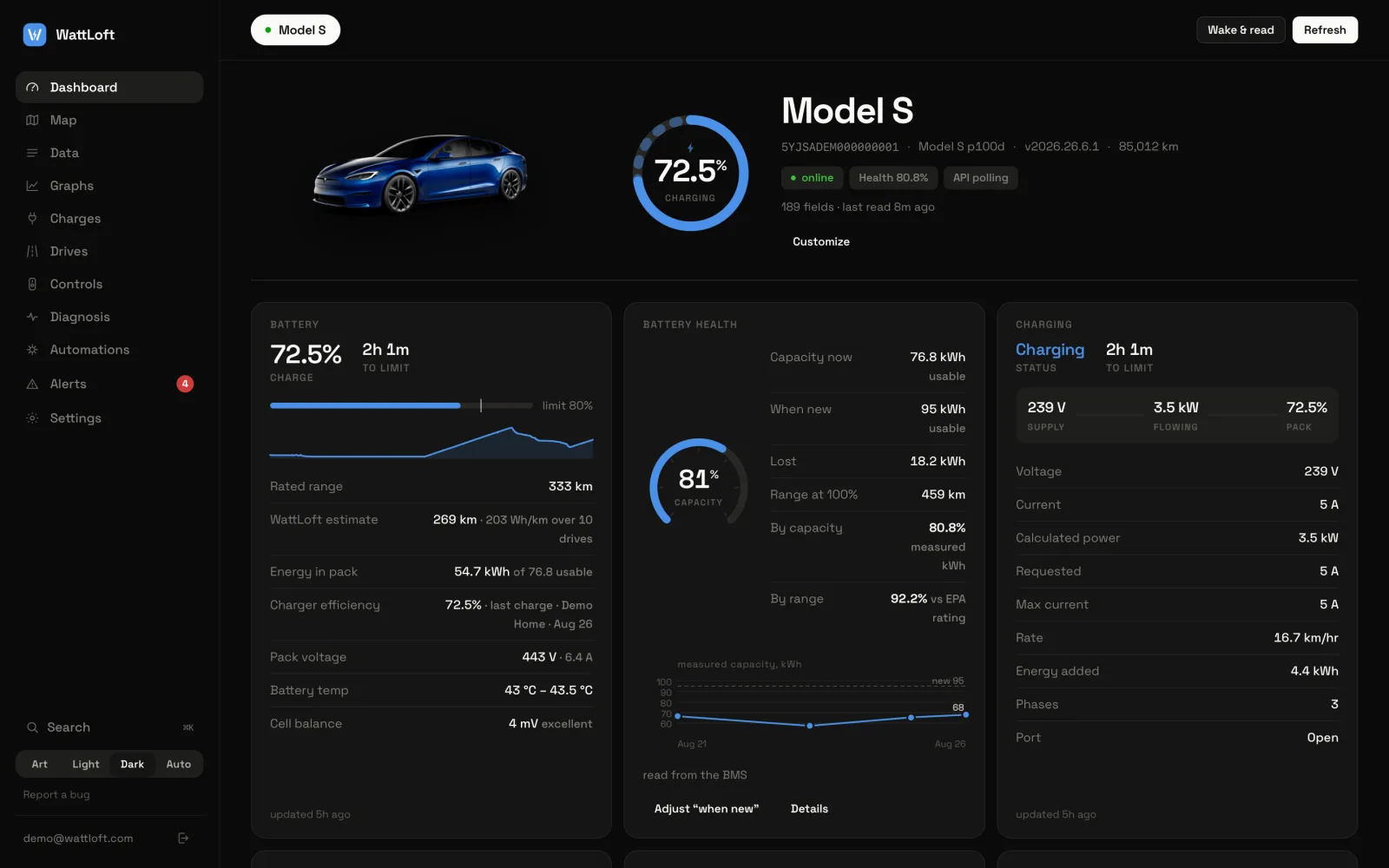
- Battery — charge, usable energy and time to the limit; the charge-limit bar; rated, estimated and ideal range; the WattLoft estimate of range (your own recent consumption applied to what is in the pack, shown as Wh/km or Wh/mi over the last drives); energy in the pack; charger efficiency of the last charge; pack voltage and current; battery temperature; cell balance; what the car is drawing right now and what is running; a 24-hour sparkline.
- Battery health — the gauge and the numbers explained in section 5, with a trend chart of measured capacity and an Adjust “when new” button.
- Charging — status and time to the limit; a flow row supply V → flowing kW → pack %; voltage, current, calculated power, requested and maximum current, charge rate, energy added this session (“Last session added” when unplugged), phases, port and fast-charger details.
- Climate — inside and outside temperatures, whether air is flowing, the temperature gauge, toggles for Climate on/off, Max defrost, Wheel heat, Keep climate, Cabin protect and Bioweapon, and a seat map.
- Tyre pressure — four chips on a top-down car, coloured against the car’s recommended cold pressure: red at 0.4 bar or more below it, amber at 0.2 bar below, 0.35 bar above, or whenever the car raises a tyre warning; green otherwise. The recommended figures come from the car; where it reports none, the door-card default is used and labelled as such.
- Battery pack (live) — streaming cars only: pack temperature dial, live volts and amps, kW leaving or entering the pack, cell balance, energy in the pack, the reserve below 0%, isolation resistance, BMS state and battery heater.
- Drive & location — speed gauge, gear, heading and power, the navigation destination and arrival, a map and Take me to the car.
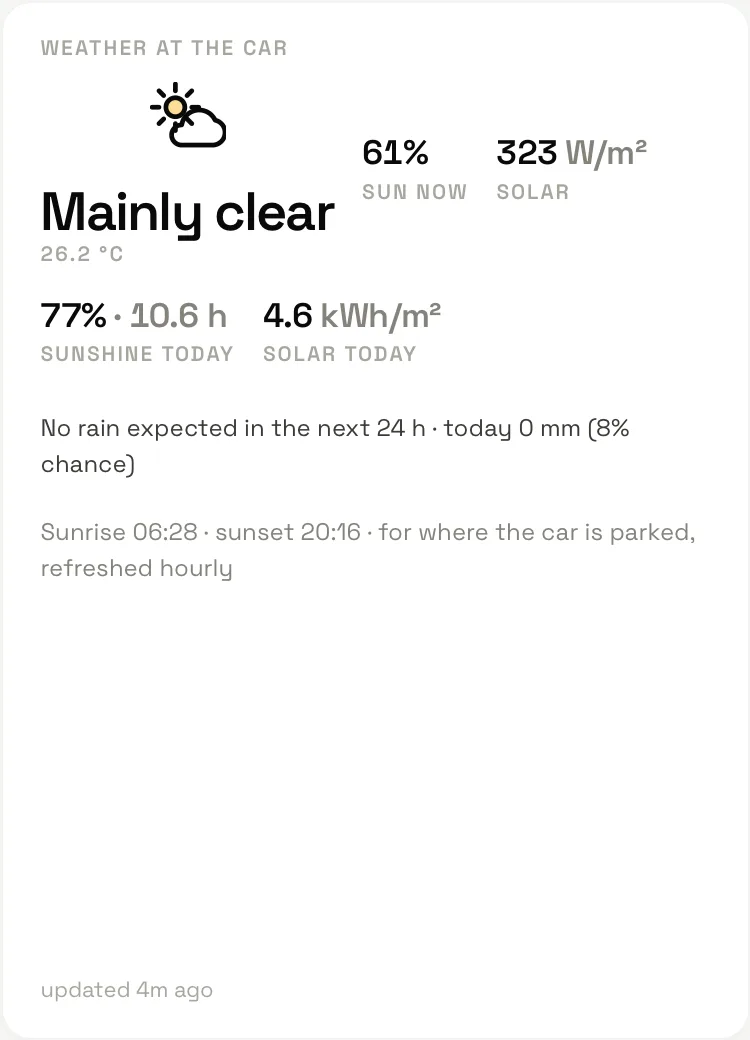
- Weather at the car — the conditions where the car is parked: temperature, sun now, solar radiation, sunshine and solar energy today, rain now / in N minutes / none in the next 24 h, sunrise and sunset. Refreshed hourly for parked cars (section 8 lists the fields).
- Security — locked or unlocked, Sentry, whether someone is in the car, doors, windows, valet mode, remote start.
- Software — installed version, an available update with download and install progress, Install now and Cancel update, and the release notes.
- Media — what is playing, transport buttons and volume.
- Efficiency & range, Recent trips (tap a row to replay it), Recent charges (tap to open it in Charges), Vehicle & warranty (VIN, model, trim, colour, wheels, battery pack and cell supplier, factory, odometer, service and warranty rows) and API usage (Tesla calls today and this month).
Setting the charge limit, temperature and seats
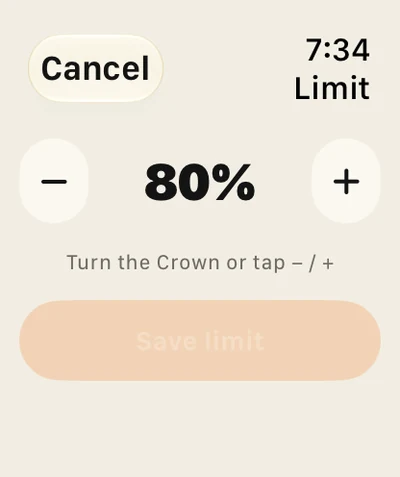
- Charge limit — drag the bar on the Battery card. It moves in 5% steps between 50 and 100. When you let go the new limit is sent after a second and a half; the toast shows it with an Undo button, and there are explicit Cancel / Set NN% buttons if you prefer to confirm. The same works on the Apple Watch with − and + buttons.
- Cabin temperature — drag the gauge on the Climate card (15–28 °C, or 59–82 °F, in half-degree steps) or use − and +. The value is sent in Celsius whatever units you read.
- Seats — the seat map has a Heating tab and, on cars with ventilated seats, a Ventilation tab. Tap a seat’s bar to set that level; tap the same bar again to turn it off.
Every command answers in a toast: Sending…, then Done — reading the car back in a moment (the car is re-read four seconds later so the cards show reality), The car was already at that value when nothing needed changing, or Failed: … with Tesla’s reason. A sleeping car is woken automatically before the command and the command is retried for about 40 seconds.
Customize layout
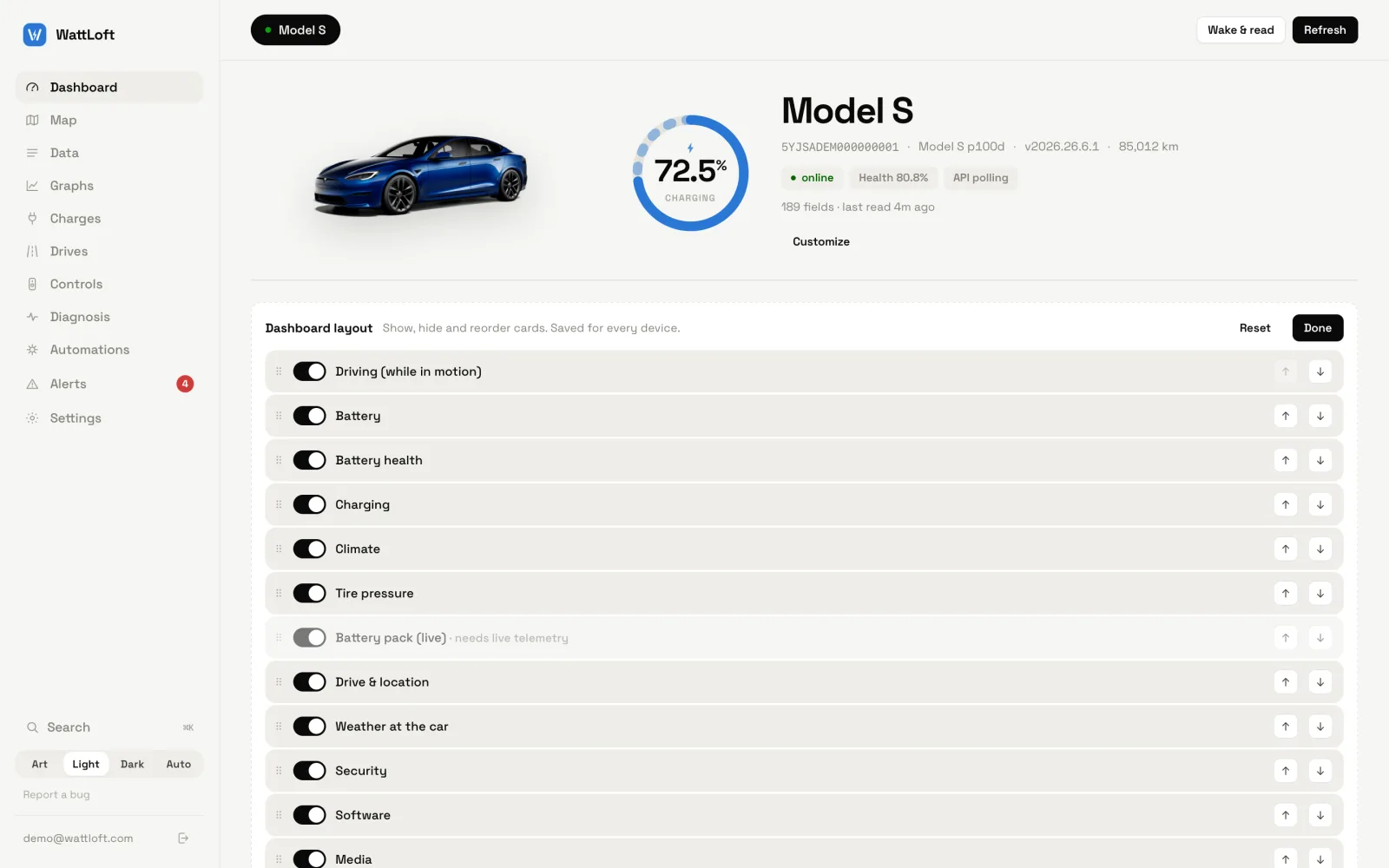
Customize in the hero opens the Dashboard layout panel: a switch per card to show or hide it, ↑ ↓ buttons and a drag grip to reorder, Reset and Done. Cards that need a live stream are marked “needs live telemetry” and stay locked on a polled car. The layout is saved to your account, so every device — web, Mac, iPhone — shows the same order.
Wake & read versus Refresh
On iPhone, fullscreen driving and the landscape gauge include a Realtime button for one-second driving signals. It returns to normal streaming when you leave or lose the connection. Members default to ten sessions per week and 15 minutes per session. Admins can change both under Settings → Live streaming; zero means unlimited. Admin accounts are exempt from both limits.
- Refresh reads fresh data for every car that is already awake. It never wakes anything; if all your cars are asleep it says so and suggests Wake & read.
- Wake & read wakes the selected car, waits for it (up to about 30 seconds) and reads it. Waking uses billable Tesla API calls and, done often, keeps the car from sleeping — which is exactly the stationary drain WattLoft otherwise avoids. Use it when you need a reading now, not as a habit.
The API usage card shows how many calls your cars have used today and this month. The Mac app has a ⌘R refresh button; the phone app refreshes by pulling down.
The “Reload” nudge
When WattLoft itself has been updated while your tab was open, a toast says “WattLoft was updated — reload to get the new version” with a Reload button. Nothing breaks if you ignore it; reloading simply picks up the new version.
The Controls page
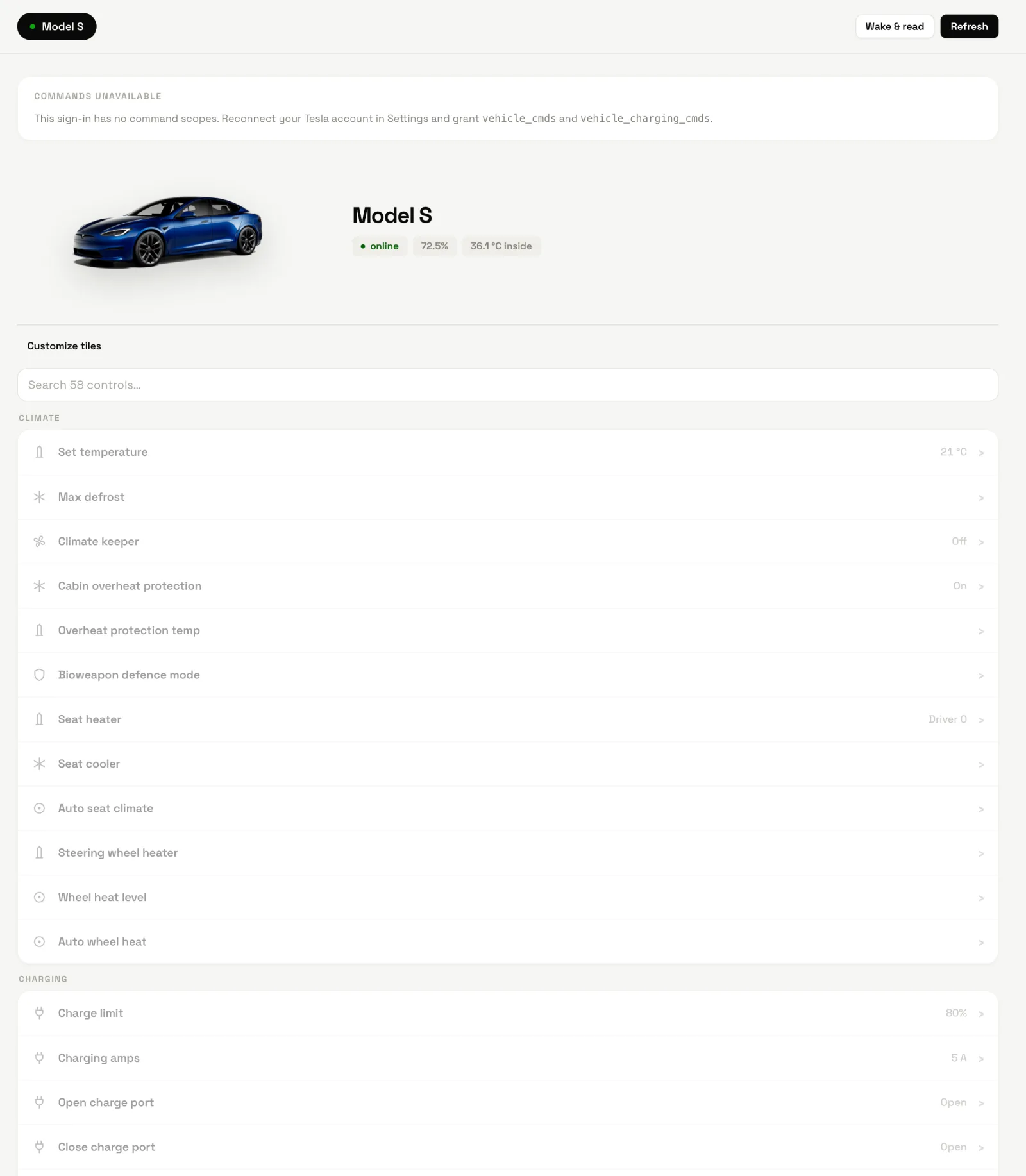
Controls lists every command the car accepts, grouped as Climate, Charging, Openings, Find the car, Security, Media, Navigation and Vehicle, with a search box, a Customize tiles button for the quick tiles (the same set the Apple Watch and the home-screen widget use) and a log of recent commands. Commands that open the car, honk or move a part ask for confirmation first. If your Tesla sign-in was approved without command scopes the page says so and tells you to reconnect the Tesla account with commands allowed.
Search and keyboard
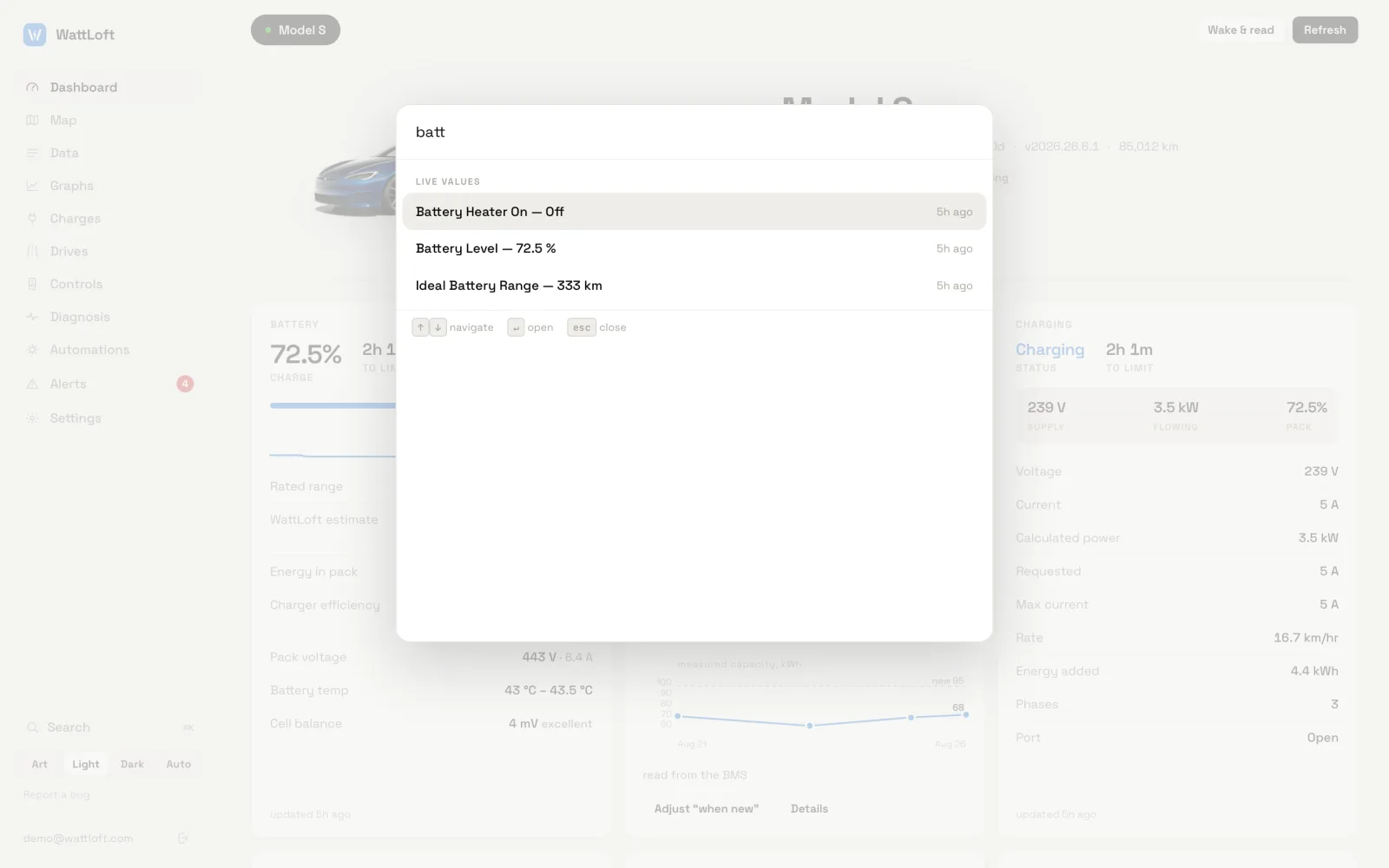
⌘K (or Ctrl+K, or /) opens the search palette from any view: it finds live values, alerts, charges and drives and jumps to them. Esc closes the palette, a dialog or the driving HUD.
On a keyboard, 1–9 and 0 open the pages in sidebar order (Dashboard is 1, Alerts is 0), , opens Settings and R presses Refresh. Hover a page in the sidebar to see its key. The keys do nothing while you are typing in a field or a dialog is open.
3Live driving
The moment the car moves, a driving strip rides above the dashboard hero; when it parks, the strip goes away. On a streaming car every figure on it updates once a second.
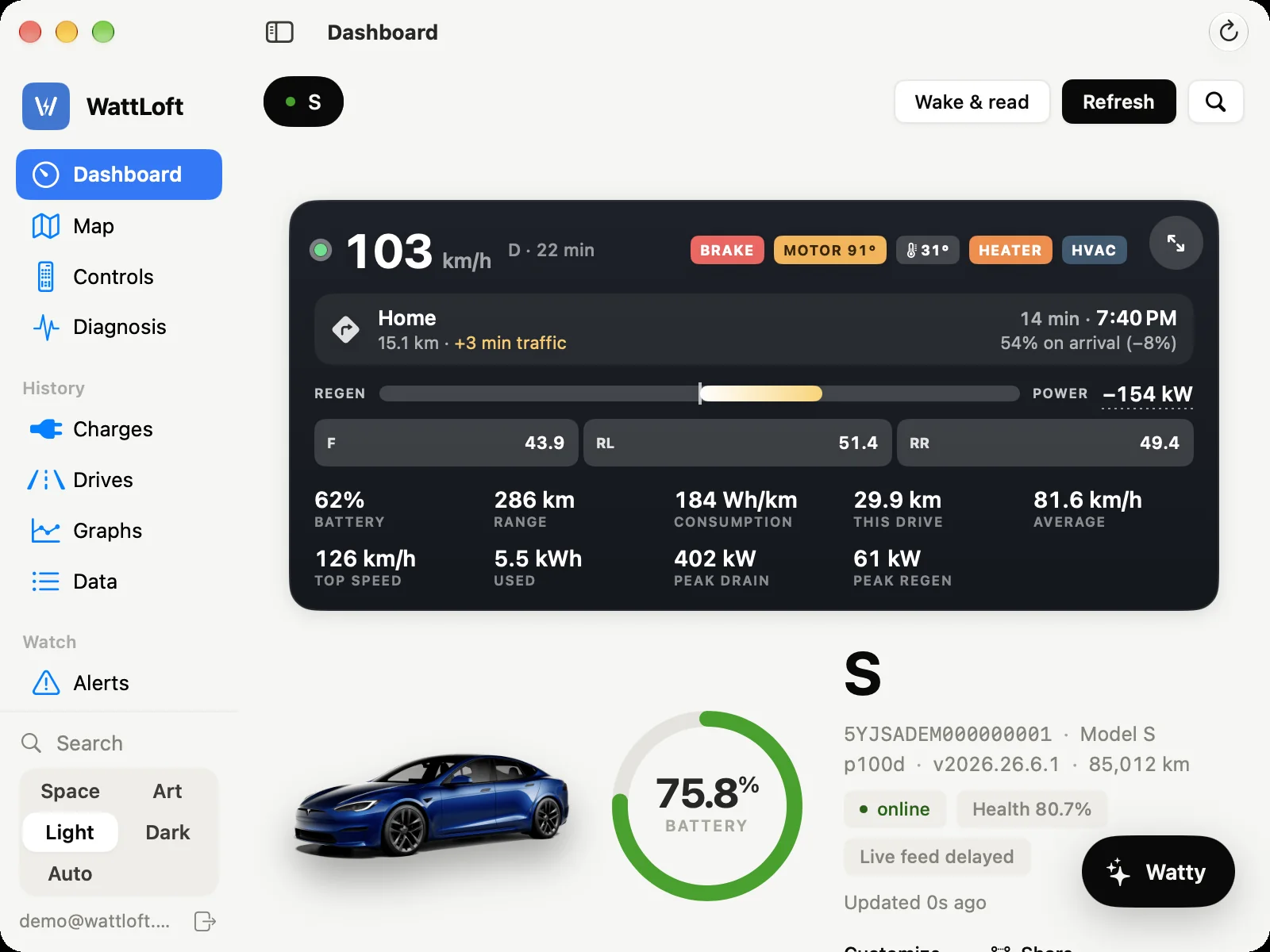
What the strip shows
- Speed, current and, in the stats row, average and top speed for this drive.
- Pack-side power — volts × amps read from the battery itself, not an estimate. The bar is centred on zero: regen fills to the left in green with a + figure, drain fills to the right in amber with a − figure. The scale grows with the drive’s own peaks.
- Per-motor split — on dual- and tri-motor cars the bar is split into F, R (or RL and RR) segments, each with its own kW; a motor that is coasting reads idle. The split comes from the drive inverters, so it needs a streaming car.
- Everything but the motors — tap or hover the kW figure for the aux popover: Battery heater, Climate and Other. Tesla reports no per-system wattage, so the remainder after the motors is apportioned by what says it is running, and the popover says estimated.
- Signals — an accelerator bar, a brake chip, motor temperature when it is high, pack temperature (turns hot at 45 °C), heater and hvac chips.
- Brake flash — the strip (and the HUD) flash briefly when the brake pedal goes down. Off when your system asks for reduced motion.
- Route line — the destination, distance, arrival time, traffic delay and the expected battery on arrival, or “driving — no destination set”.
- Trip stats — this drive (distance), used (kWh from the BMS gauge), consumption in Wh/km or Wh/mi, peak drain, peak regen and battery.
Tapping the strip opens the Drives tab, where the live drive sits at the top with its map. A car without streaming updates the strip at the driving poll cadence rather than every second, and has no per-motor split.
The full-screen HUD
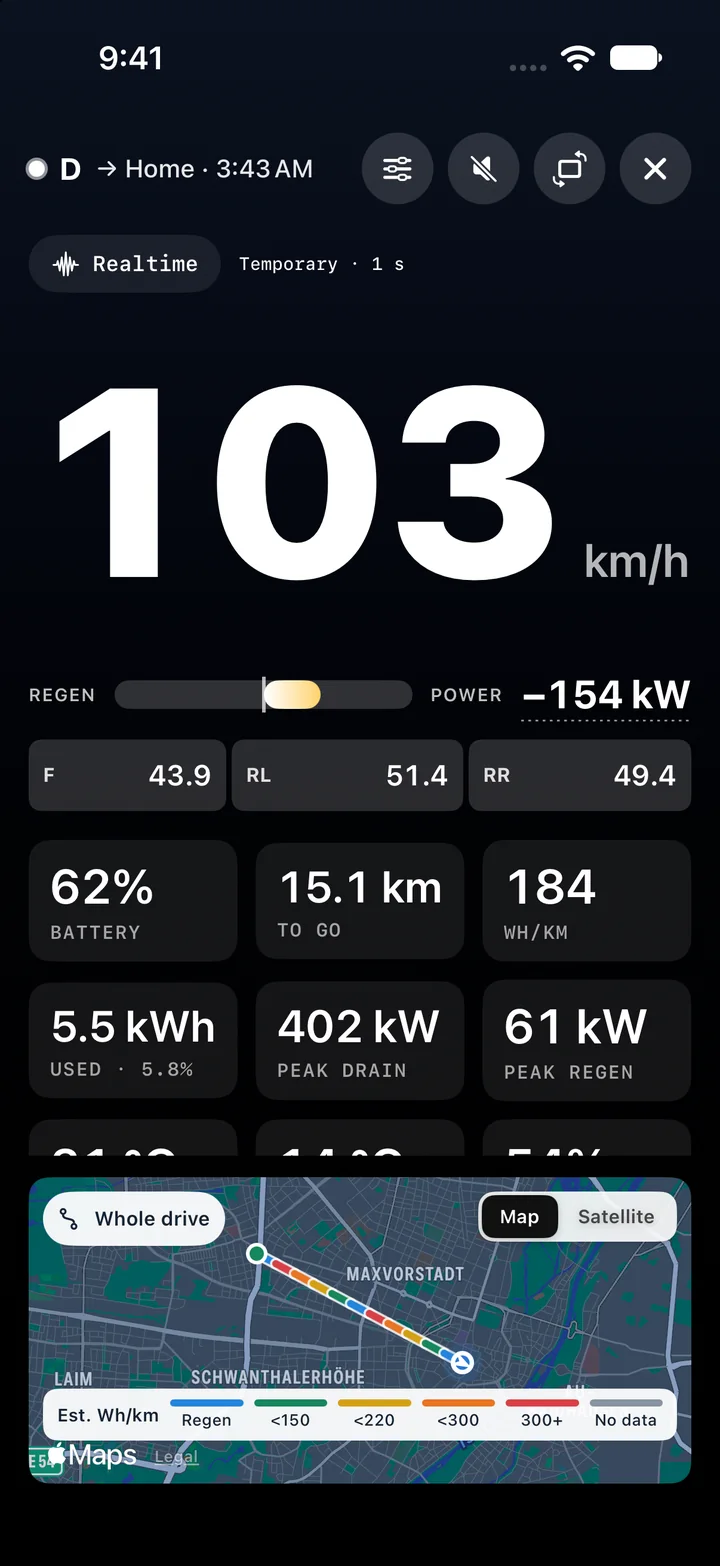
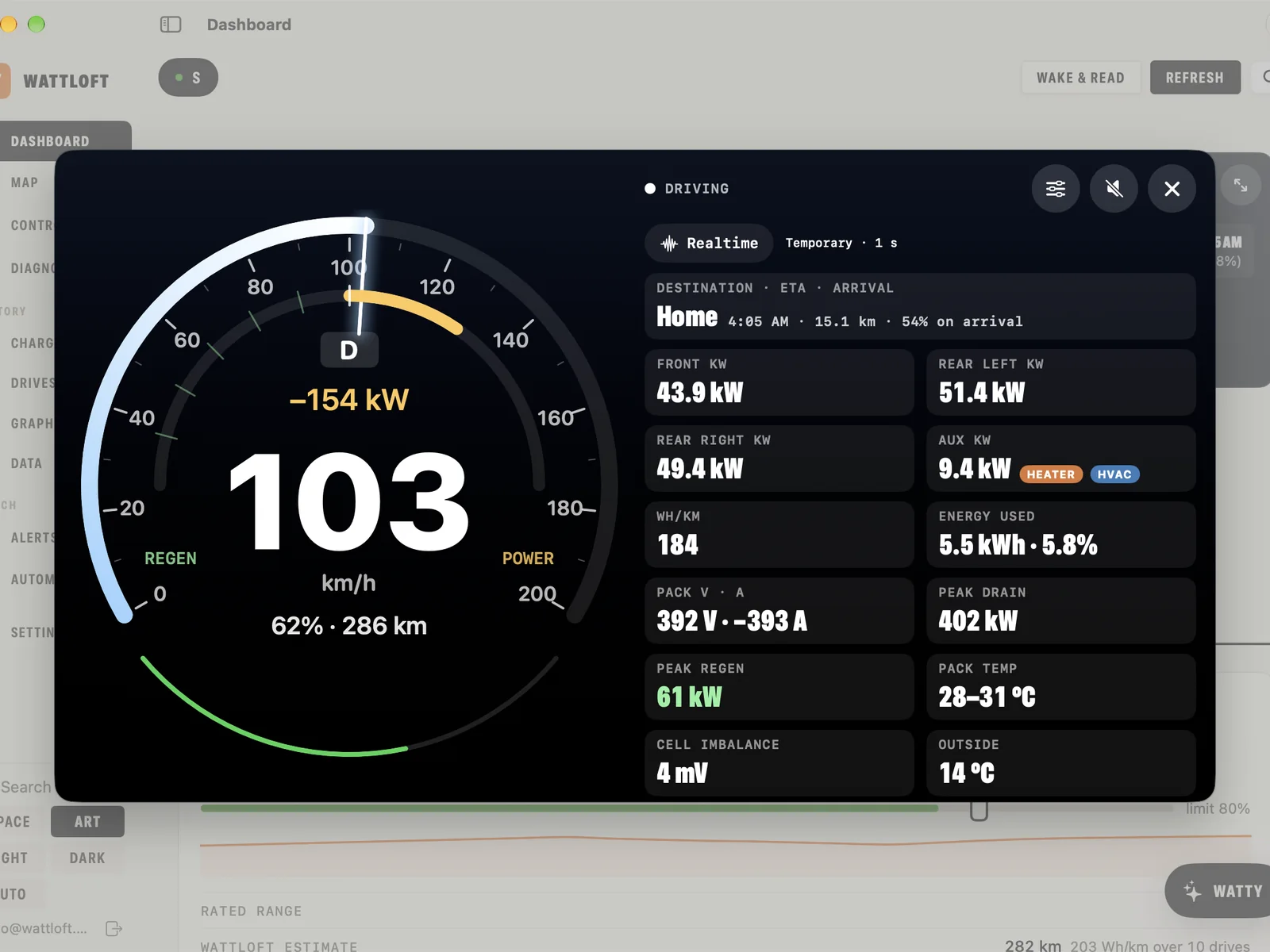
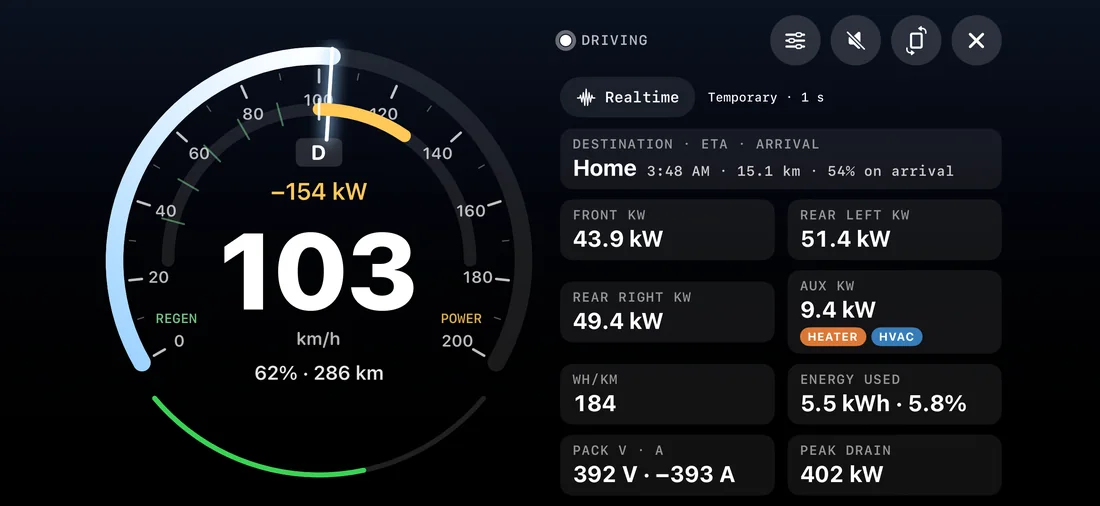
The ⤢ button turns the whole screen into an instrument. ✕ or Esc closes it; it also closes itself when the drive ends.
- Portrait — gear, the route line, the big speed, the power bars, a grid of cells (battery, to go or range, Wh/km, used, peak drain, peak regen, pack, outside, on arrival), the signals row and a live map.
- Landscape — the Landscape / Portrait button switches to a gauge cluster: speed on the outer arc (0–200 km/h or 0–130 mph) with a glowing needle, pack power on the inner arc with regen to the left and drain to the right, a thin battery arc below, the gear, live kW and the numeral in the middle. A panel beside it lists cell imbalance, pack temperature, pack volts and amps, isolation, each motor’s kW, aux, energy used, Wh/km, the peaks, range, outside temperature and the destination.
- Sound — 🔊 Sound on / 🔈 Sound off. Nothing is recorded: the browser synthesises an EV whine whose pitch follows the speed and whose level follows the drain, a lower regen tone while the car recuperates, and a click when the brake pedal goes down. Off by default; the choice is remembered in that browser.
- Keep awake — while the HUD is open the screen is kept from dimming (a wake lock, where the browser supports one). It is released when you close the HUD.
On the wrist
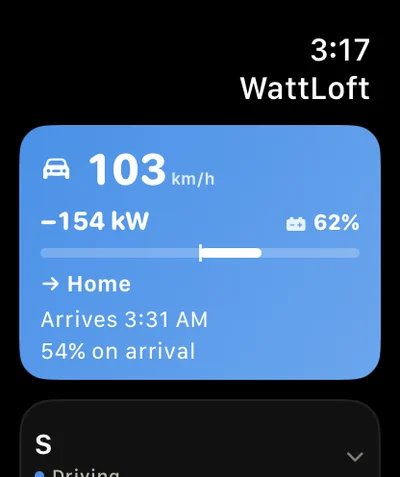
While the car moves, the Apple Watch Now page starts with a miniature strip — speed, signed power, a zero-centred bar, battery and the route line — fed by the phone as soon as it has a fresher frame than the watch itself.
4Map
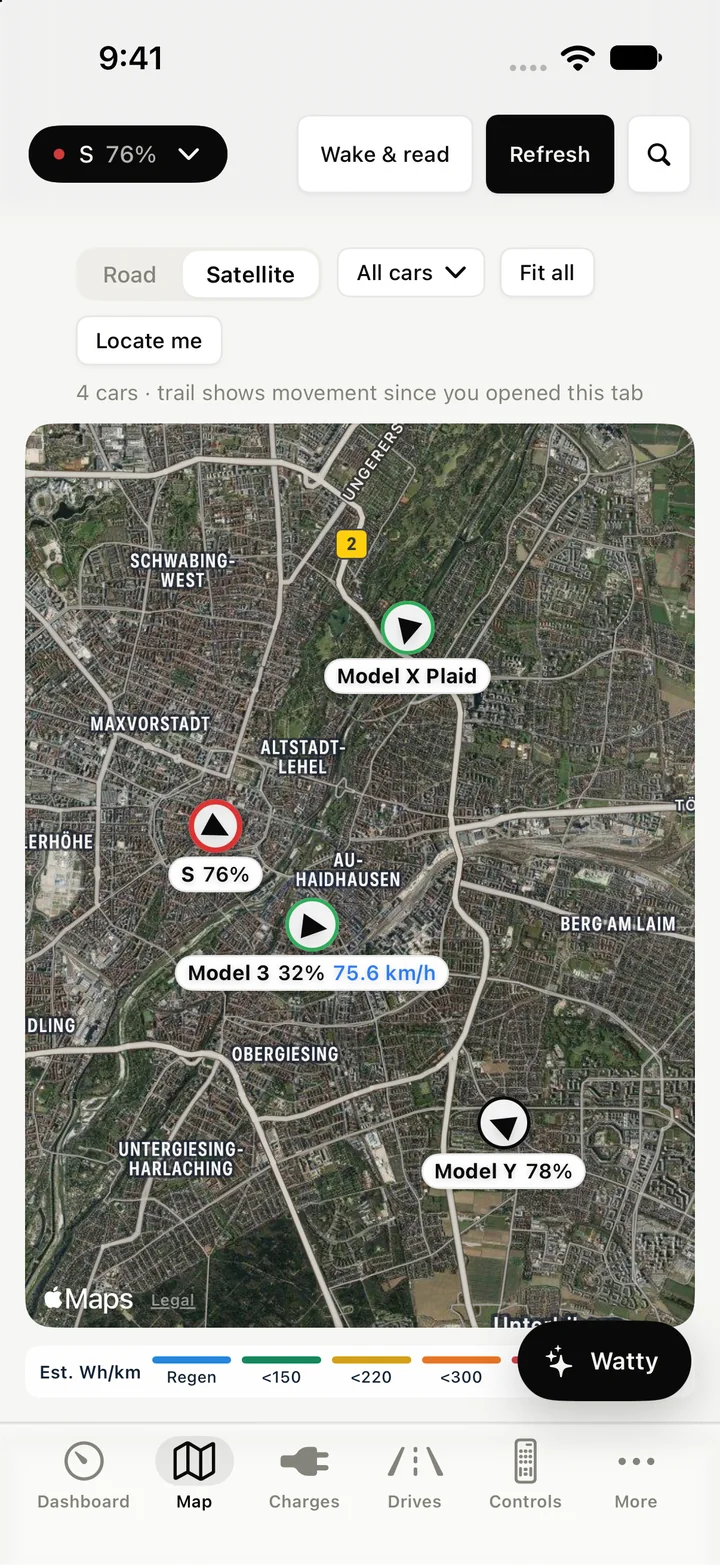
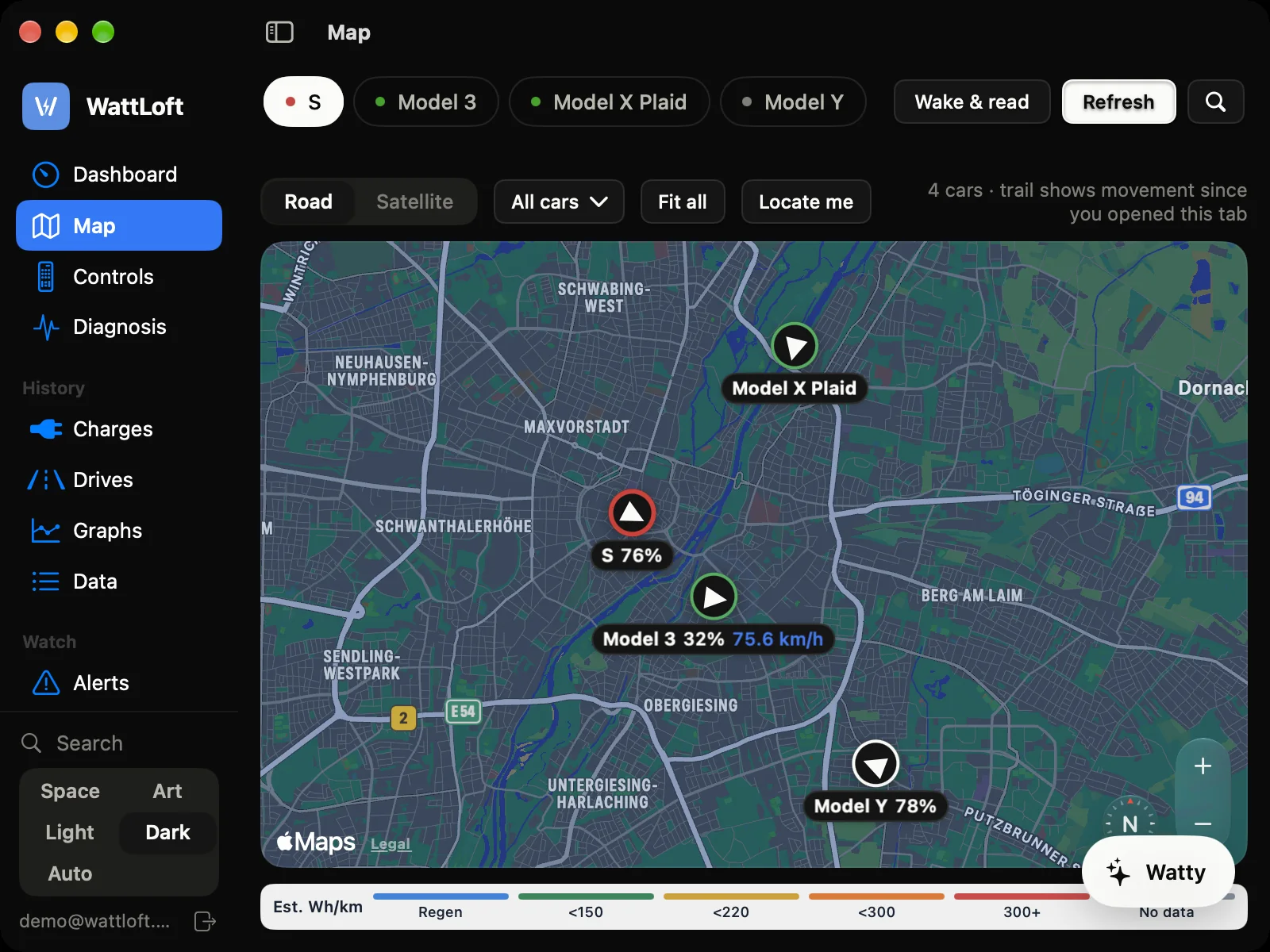
The Map tab puts every car you can see on one map — where each one is right now, and where it has been since you opened the tab.
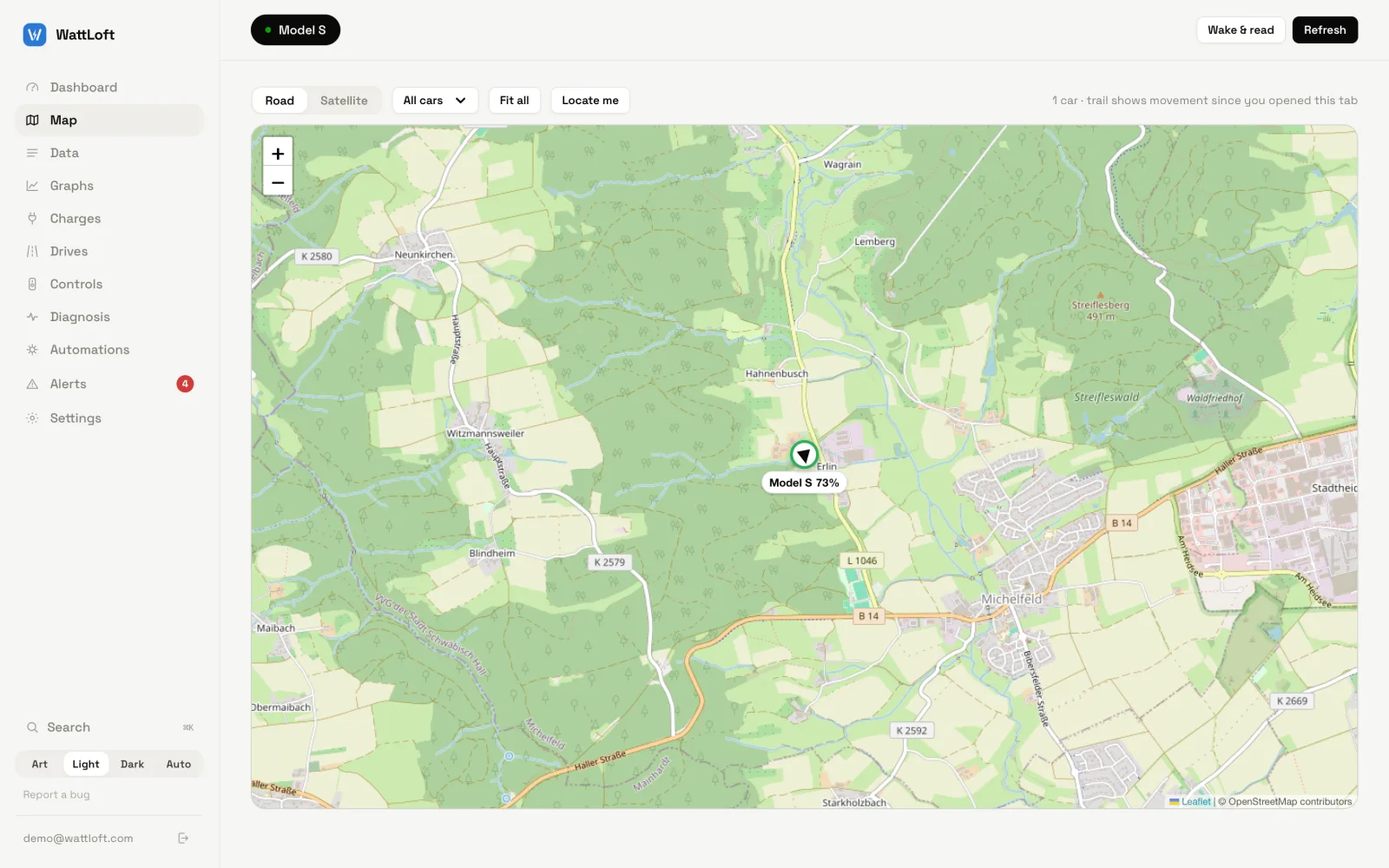
- Markers — a heading arrow (faded when the heading is unknown), the car’s name and its battery percentage; while the car is moving, a speed chip too. Tap a marker for the state, battery, speed and compass point, when it was last seen, Take me to the car (directions) and Select this car.
- Trails — a line grows behind each car as it moves. It starts when you open the tab and is cleared when you come back.
- Road / Satellite — the style is remembered. Tiles are fetched and cached by WattLoft itself, so your browser never talks to the tile providers. Satellite imagery ends at zoom level 18 and road tiles at 19; you can zoom further, but the last level is enlarged rather than more detailed.
- Car filter — All cars or any subset; the choice sticks. Fit all frames the selected cars.
- Locate me — asks the browser for your position and draws a blue dot; on phones a Compass button turns the dot into an arrow that follows your heading. Your location is used only on the map and is not sent to WattLoft.
Positions come from the live stream, so a streaming car’s marker moves as it drives; a polled car moves each time it is read. Note that a page reload lands on the dashboard — the Map tab is not remembered as the last view.
The apps draw the same map with Apple Maps (Road and Satellite), with the same trails, filter, your own dot with a heading cone, and a callout that opens directions in Apple Maps. The watch has a Map page too.
5Charges
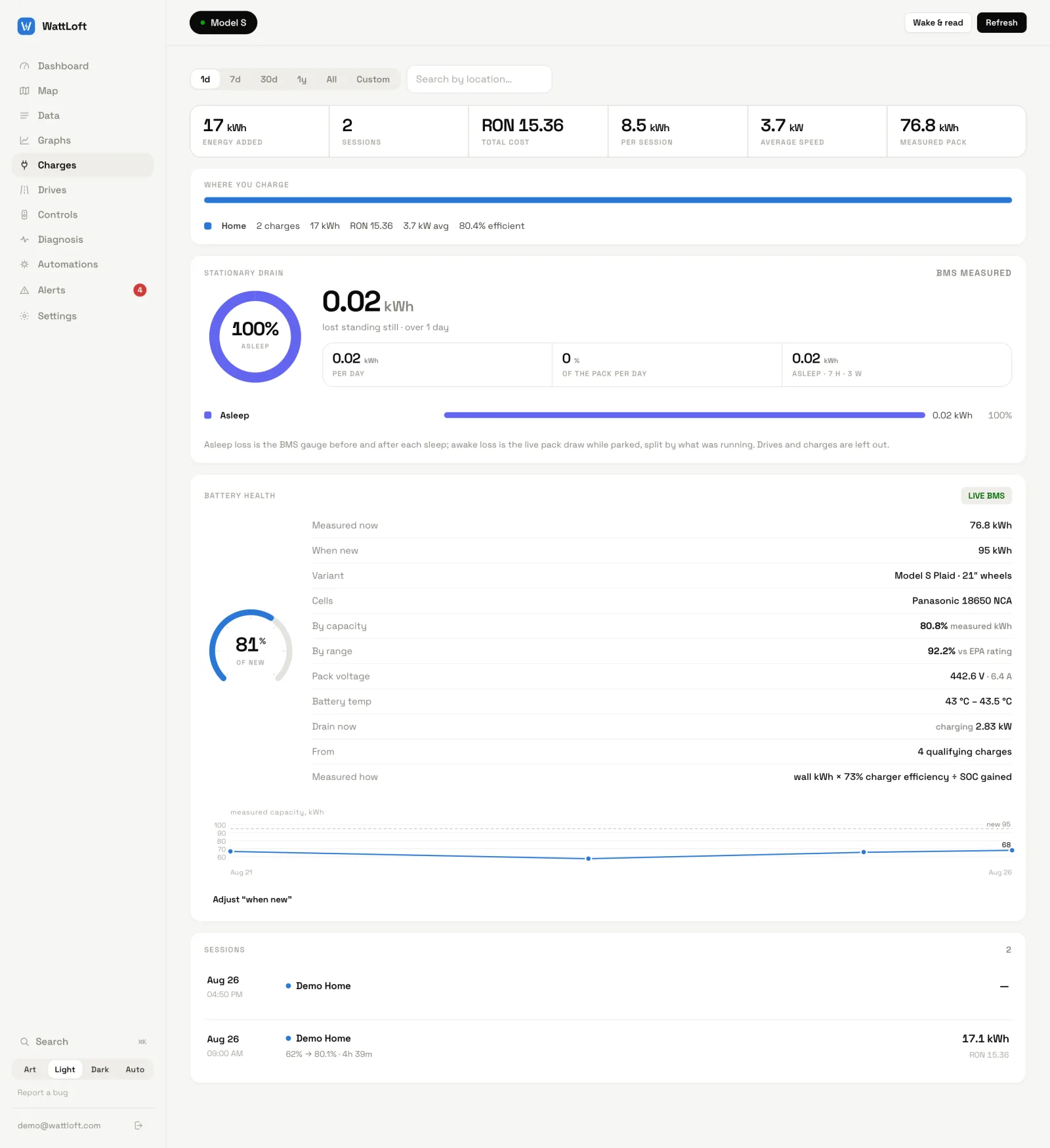
Charges is where energy in, money out and the losses in between are accounted for — including the energy the car loses while it just sits there.
Ranges and search
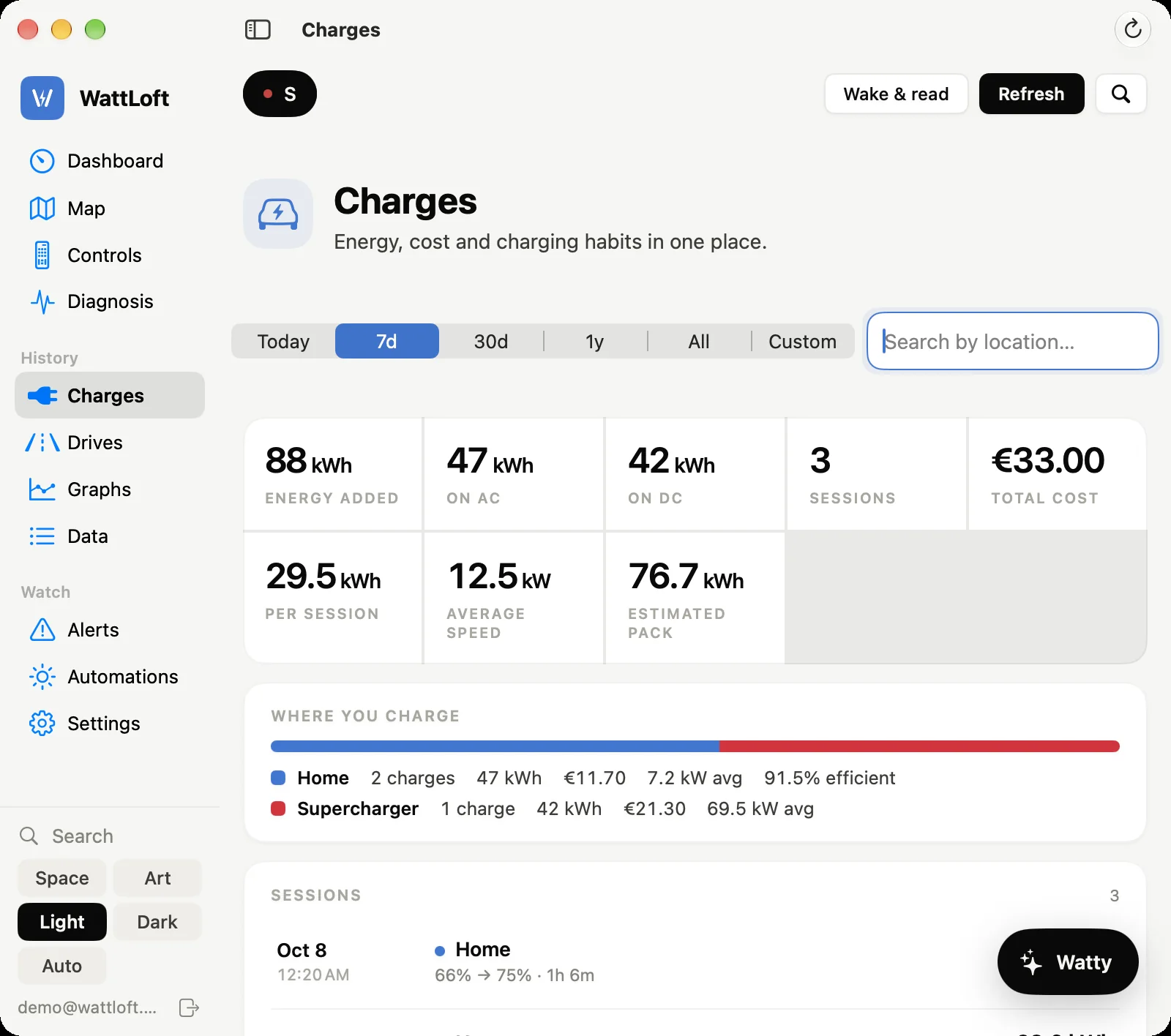
The presets are Today, 7d, 30d, 1y, All and Custom. Today starts at midnight in your local time — it is not the last 24 hours. The others count back from now; Custom gives you two date-and-time fields and Apply. When today (or the last 7 days) has nothing yet, the empty list offers Show last 7 days (or Show last 30 days) in one tap. The search box (Search by location…) matches the place, address, site type, dates, energy, cost and the start and end percentages.
The summary and “Where you charge”
Tiles for energy added, on AC, on DC, sessions, total cost, per session, average speed (kW) and measured pack. DC is every session at a Supercharger or other fast charger; AC is the rest. Where you charge splits the range by site — home, Supercharger, work, public — with the number of charges, energy, money, average power and the measured efficiency at each.
Sessions and the detail
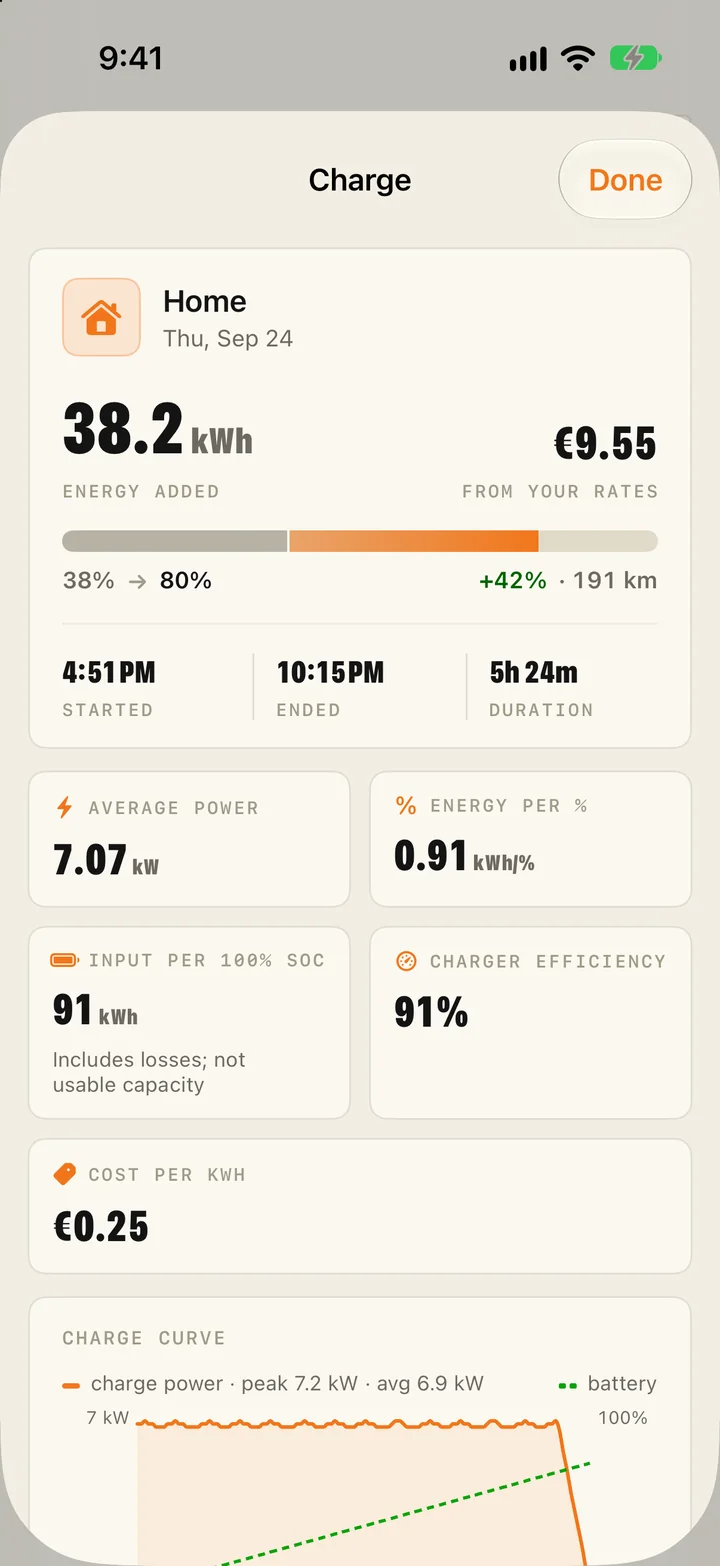
Each row shows the date, the site and place, the percentage from → to, the duration, the energy and the cost (or the range added). Open a row for the tiles: Where, Started, Ended, Duration, Energy, Average power, Energy per %, Implied pack size (only when at least 12% was gained), Range added, Charger efficiency, Battery temp, Outside temp, Inside temp (averages over the session), Cost, Cost per kWh, Location and Type, then the charge curve — power and battery percentage over the session, with the peak and average power, which you can scrub — and a map with Navigate here.
Charger efficiency per charge is measured, not assumed, when the car streams: the BMS energy gauge just before the session and just after it settles gives the kWh the pack actually gained; divided by the kWh the wall metered in (Tesla’s session counter) that is the charger’s efficiency for that charge — “91% wall 17.1 → pack 15.6 kWh, BMS measured”. Sessions without a gauge reading say “no pack gauge during this charge”. DC sessions say “not measured on DC fast charging”: the conversion from AC happens inside the charger, where the car can't see it.
Superchargers. In Europe the car reports a Supercharger and any other CCS charger the same way, so when a fast charge starts WattLoft asks Tesla which of its sites are nearby: plugged in within 250 m of one, the session is a Supercharger and goes by the site's name. Tesla's own billing then fills in what the session actually cost — charging plus any idle fees, “billed by Tesla” — on the same session, keeping its curve, temperatures and map. Bills arrive within a few hours; a free session shows its zero.
Electricity rates and costs
Rates live in Settings → Electricity rates. Pick your Currency (60 to choose from) and enter what a kWh costs you At home, at an Other AC charger and at a DC fast charger. Save prices the charges that finish from now on; Update all charges saves the figures in the boxes and re-prices every past charge with them. Charges billed by Tesla (Supercharging, and anything else Tesla invoices) keep Tesla’s price. When Tesla bills in a different currency than yours, the amount is converted with the day’s exchange rate and the tile shows “≈ billed … by Tesla” so you can see both.

Rates belong to the car’s owner: a car someone shared with you is priced with its owner’s rates, and your own stand in only when the owner has none.
Stationary drain
The Stationary drain card answers “what did the battery lose while the car was neither driving nor charging?” — the thing usually called vampire or phantom drain — and splits it by how it was lost.
- Asleep — the loss across each sleep (or spell out of contact), read from the BMS energy gauge just before the car went to sleep and just after it woke. On a car without streaming the gauge is not available and the battery level × capacity stands in; the card’s badge says BMS measured, from battery level or while awake only accordingly.
- Awake — the live draw from the pack integrated while the car was awake but parked, attributed to whatever was running: Climate, Battery heater, Sentry, Cabin protection, and Computer & idle for the rest.
- Drives and charges are left out entirely; the donut shows the asleep share; the tiles give the total, per day, % of the pack per day, and the hours and average watts asleep and awake idle.
The same arithmetic runs every ten minutes for automations and rules, producing the fields DrainToday,
DrainAsleepToday, DrainAwakeToday and DrainPerDay7d, plus the live IdleDrainW
(section 8).
Battery health
Tesla reports neither pack capacity nor state of health, so WattLoft measures them. The card shows Measured now, When new, the Variant it matched (with the wheel size, because bigger wheels lower the official range and that must not be blamed on the battery), the Cells (supplier, format and chemistry), By capacity, By range, pack voltage and temperature, the drain right now, how many charges qualified and Measured how.
- From the BMS (streaming cars) — energy remaining ÷ state of charge is the pack’s own usable capacity, fresh and steady. The badge reads live BMS.
- From charges — for each charge that gained at least 12%, energy added ÷ percentage gained × 100. Small swings are dropped because a rounding error would blow up into tens of kWh; the rest are averaged with more weight on bigger swings, over the last year. The energy counter is wall-side, so it is scaled by the charger efficiency (measured per car when possible, 92% assumed otherwise) — Measured how spells out which.
- By range — rated range extrapolated to 100% from many stored readings, against the variant’s original EPA rating. Tesla’s range figure is EPA miles worldwide, so an EU car is not compared with its WLTP brochure number.
- When new — usable capacity when new (what the percentage gauge spans, about 95.5% of the gross figure) from a table of every pack Tesla shipped, keyed on the VIN, options and factory. If you know better, Adjust “when new” lets you enter the usable kWh and the range when new; the card then says it is using your figure.
6Drives
Every trip becomes a row you can open. Drives are detected as the car shifts out of Park and closed when it goes back, so they build up by themselves.
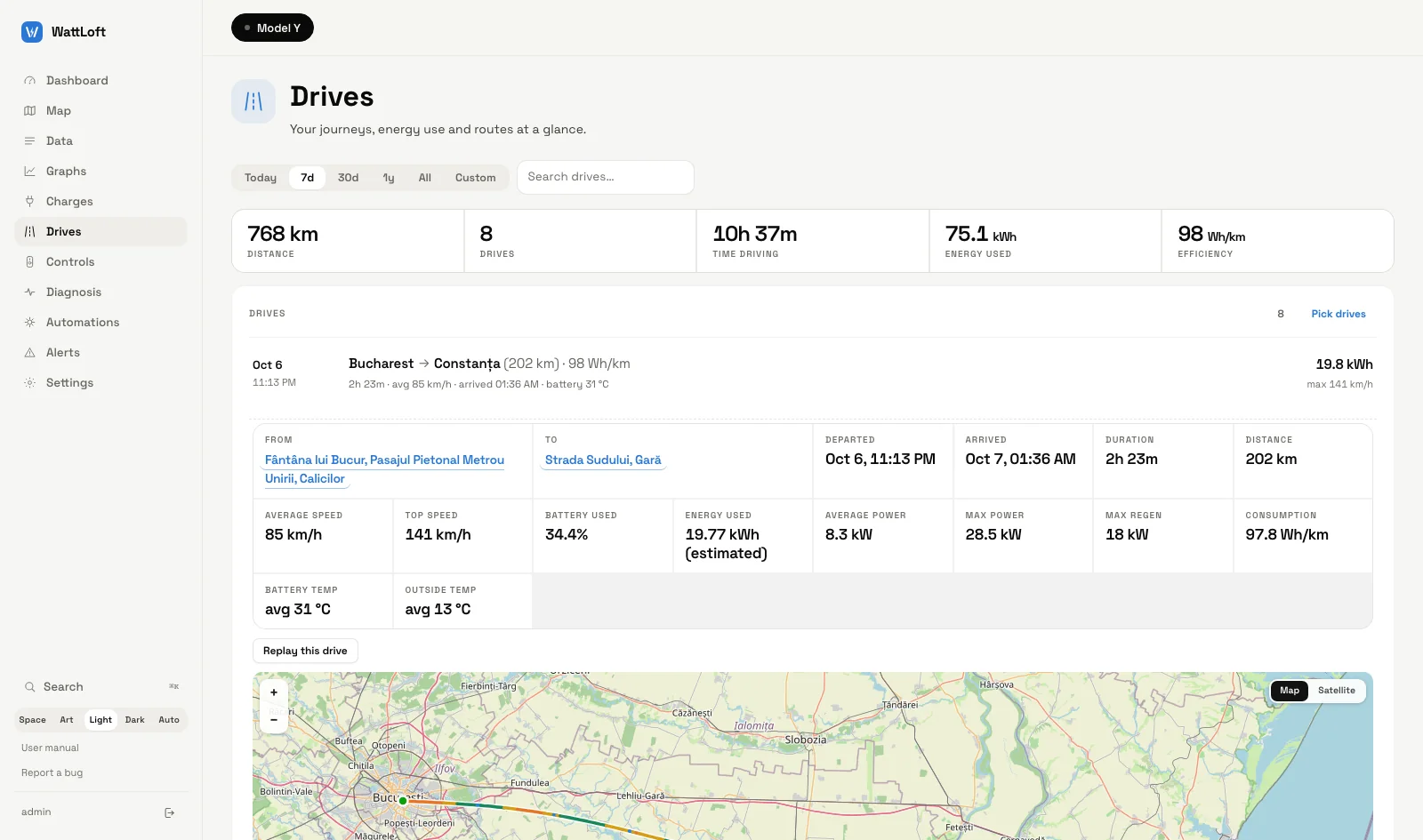
- The list — the same range presets and a Search drives… box as Charges. A row reads From → To (distance) · Wh/km, then the duration, average speed, arrival time and the average battery temperature; on the right the energy used and the top speed. Real addresses stand in for the ends until you name the places yourself.
- The summary — distance, drives, time driving, energy used and efficiency (Wh/km or Wh/mi) for the range. Consumption needs a pack size; until a few charges have been measured the summary says so.
- Only some drives — every drive in the range counts until you choose otherwise. Pick drives beside the list's count puts a tick on every row; untick the ones to leave out (or None, then tick the ones you want) and press Done. The summary and Routes in this period then cover just those, the count reads 3 of 12, and Show all goes back to the whole range. Changing the range or the car starts over with all of them.
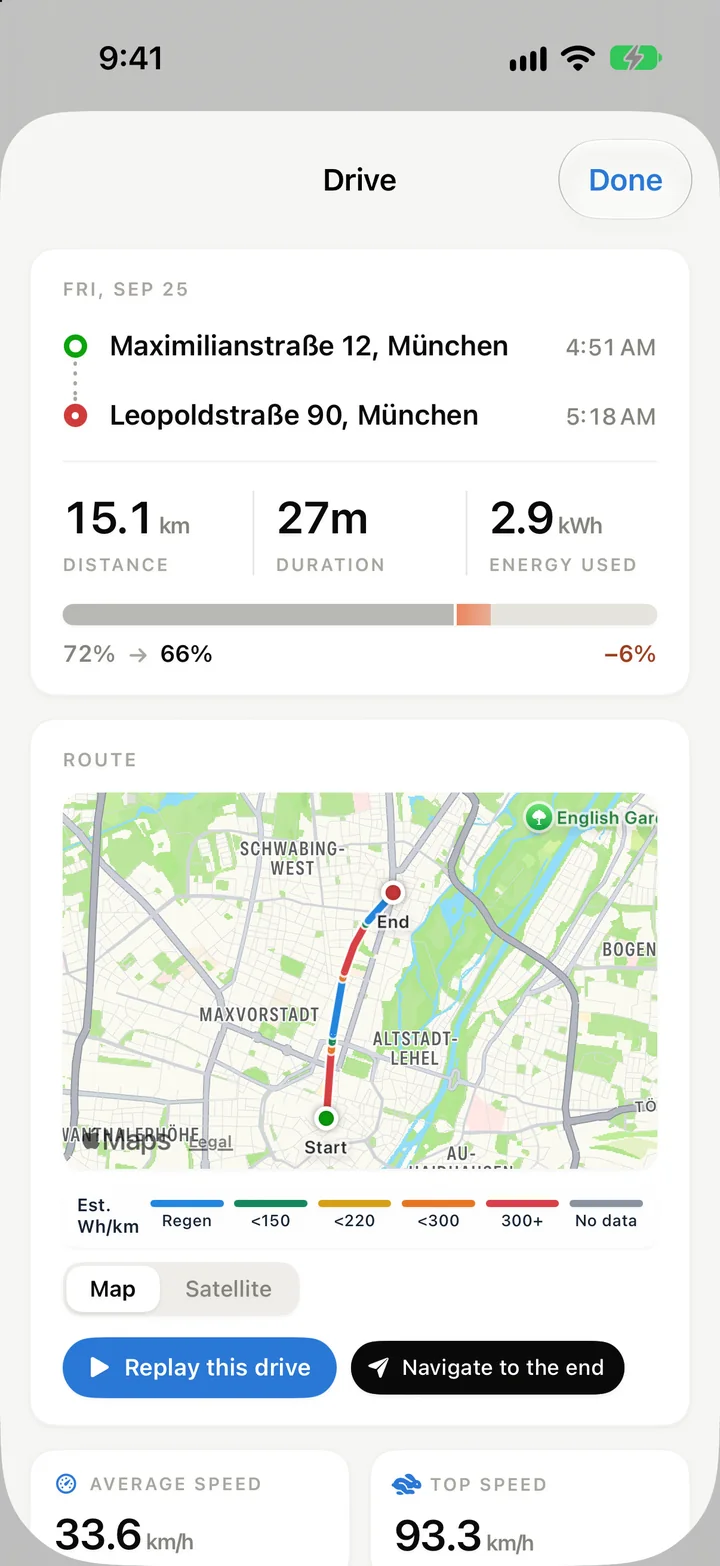
- The detail — From, To, Departed, Arrived, Duration, Distance, Average speed, Top speed, Battery used, Energy used (estimated when derived from percentage × pack rather than the BMS), Average power, Max power, Max regen, Consumption, Battery temp, Outside temp, Inside temp (averages) and Odometer start → end; then Replay this drive, a mini map with Map / Satellite, and Navigate to where it ended, which opens directions to that spot.
Routes in this period
Below the list, every recorded route of the range (or of the drives you selected) on one map. Lines are colored by estimated Wh/km unless you pick something else under Color by: speed, power (blue is regeneration), battery level, outside temperature or battery temperature, each with its own key; gray means no reading. Tap a line (or pick one under Choose a drive) and the map shows just that trip: it zooms to it, fades the others and marks From and To with their places. The strip under the map names the drive, steps to the newer or older one with ‹ ›, opens Details or Replay, and ✕ goes back to all routes. Where several lines cross, you're asked which. On a computer, click the map once and it zooms with the trackpad or mouse wheel — before that the wheel scrolls the page, and moving off the map hands it back.
On every map, Satellite carries road names, cities, countries and borders over the imagery.
Replay
The replay is a dialog with the route, a Play / Pause button, a slider to scrub through the recorded points, and the timestamp. Cells follow the position: speed, battery, power or regen, used (kWh from the BMS gauge so far), range, battery temperature (as a min–max range when it moved), inside and outside temperatures. The route draws up to the scrub point while the map stays put; the style toggle switches to satellite.
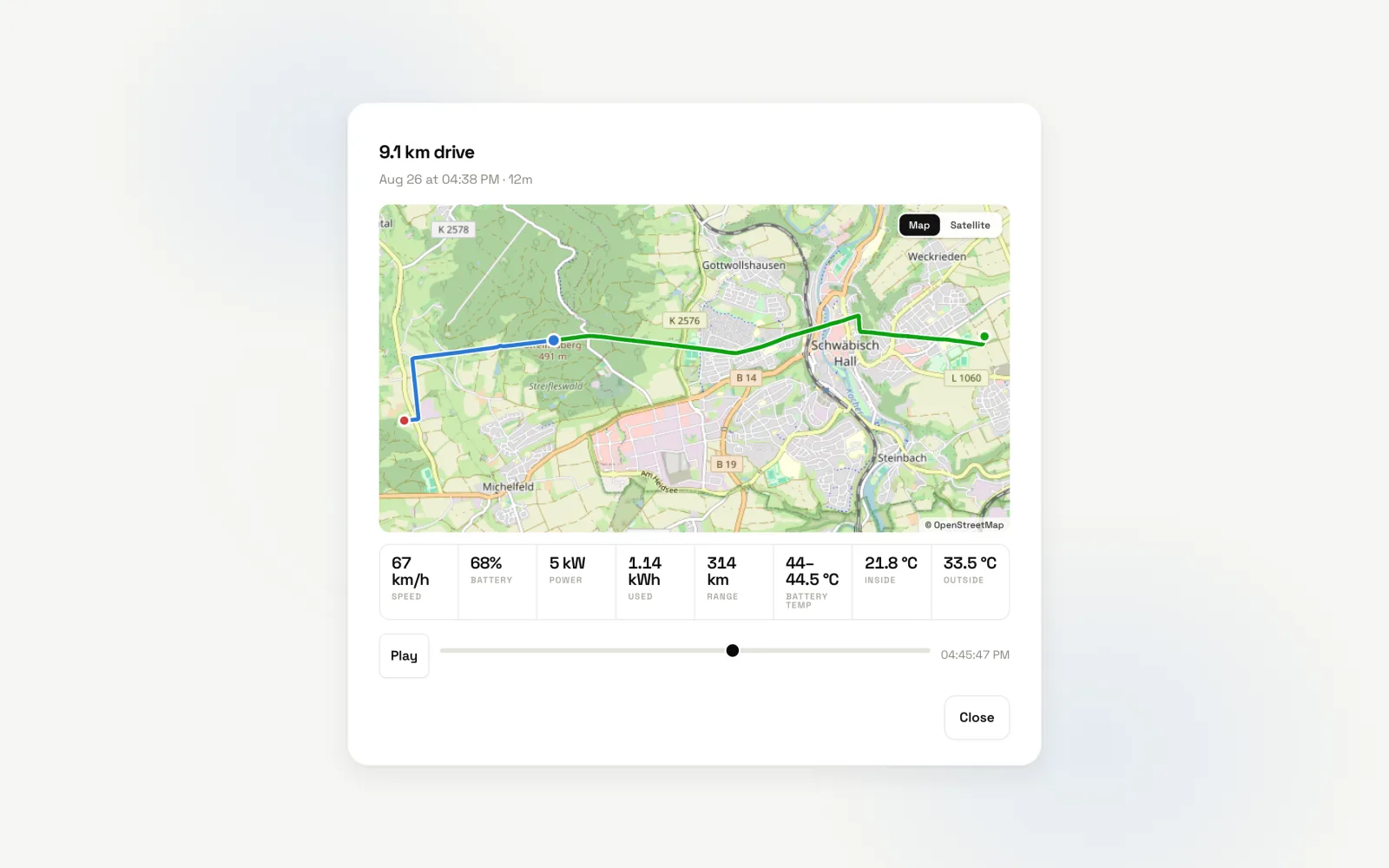
A drive with only one recorded position has no path to replay; the dialog explains that a polled car captures a point per poll, so a shorter driving interval (or streaming) records a finer path.
7Diagnosis
Diagnosis turns the pack’s own readings into verdicts. Streaming cars report the battery from the inside — brick voltages, module temperatures, isolation — so most of this view needs live telemetry; a polled car sees the parts polling can fill and a note explaining what the stream would add.
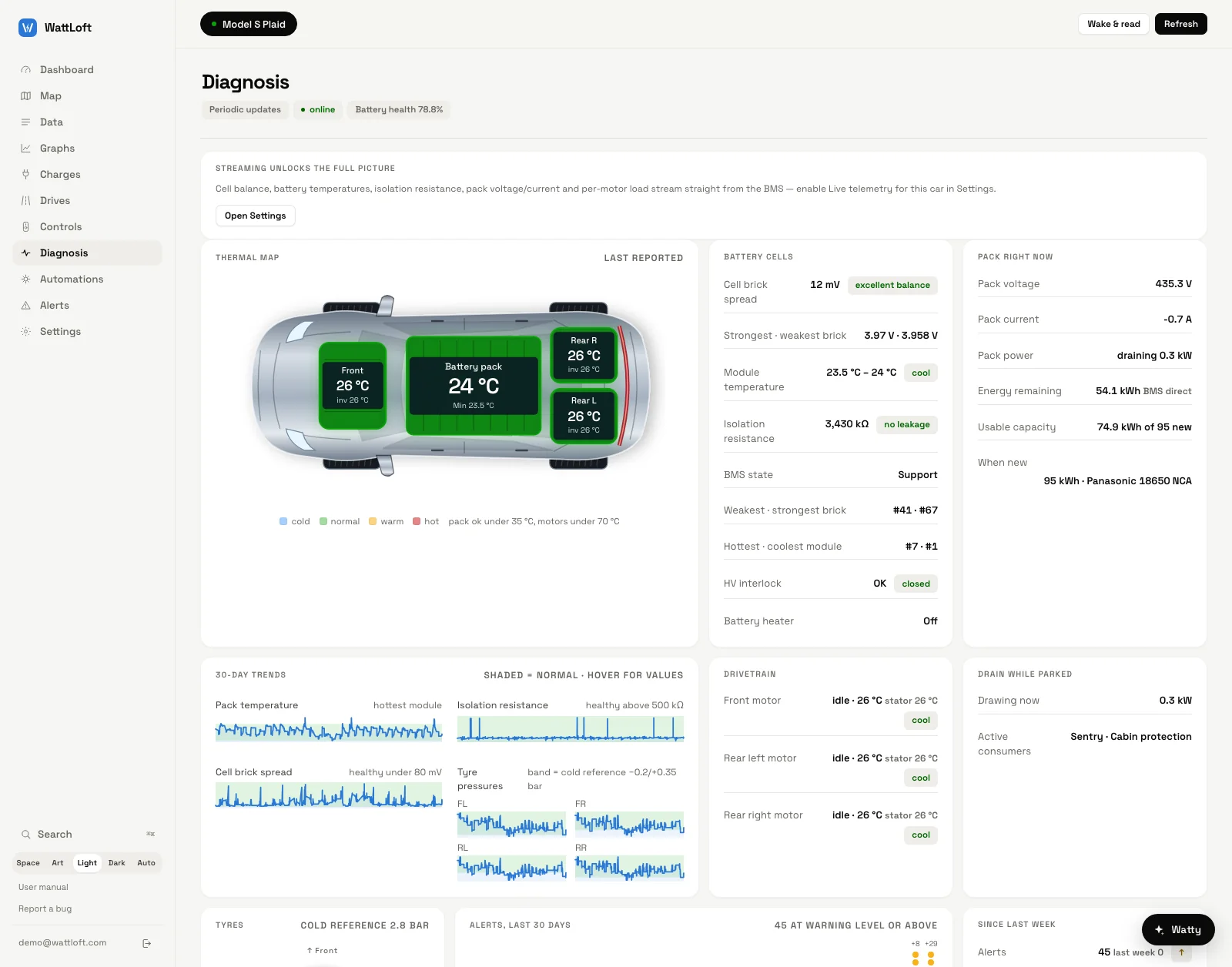
The cards, in order:
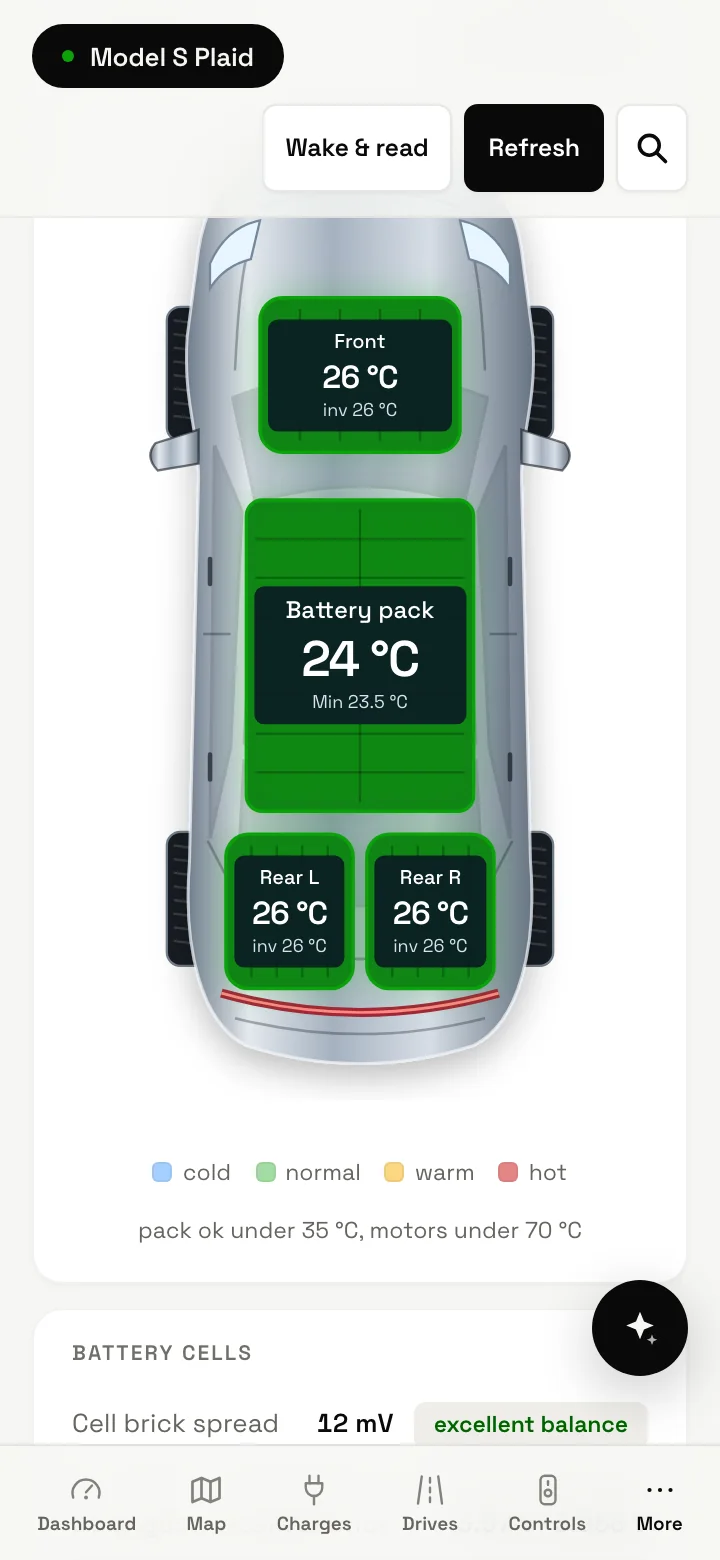
- Thermal map — a top-down car with the battery pack and each motor coloured cold to hot, with inverter temperatures; pack is fine under 35 °C, motors under 70 °C.
- Battery cells — the cell brick spread (under 30 mV excellent, under 80 mV healthy, under 150 mV uneven — watch this, above that high imbalance — service check), strongest and weakest brick, module temperature (cool, normal, hot …), isolation resistance (no leakage above 2000 kΩ, reduced — keep an eye above 500 kΩ, low — service below), BMS state, hottest and coolest module, HV interlock, estimated vs rated range, battery heater.
- Pack right now — voltage, current, power (idle, draining or charging), energy remaining (BMS direct or derived), usable capacity and when-new.
- 30-day trends — pack temperature, isolation, cell spread and the four tyre pressures, each with its normal band shaded; hover for values.
- Drivetrain — each motor’s kW, amps, heatsink and stator temperatures with a verdict, plus everything else (aux).
- Where the power goes while driving, or Drain while parked — the total from the pack and the active consumers (Sentry, climate, preconditioning, cabin protection, someone in the car, battery heater). Cabin protection is omitted while climate or preconditioning is active; its setting stays enabled.
- Tyres — a tyre map against the cold reference with the difference and a verdict (ok, adjust, low). Set them cold; readings after driving run about 0.2 bar high.
- Alerts, last 30 days — a column per day; click one to open that day in Alerts.
- Since last week — alerts, distance, consumption, energy charged and average pack temperature against the previous week, and the firmware.
- Battery habits (30 days) — average level, time above 90% and below 20%, cycles this month and lifetime cycles.
- Charging, Driving and Sleep & connectivity — sessions and the AC/DC split, average AC power, the fast-charge share and charger efficiency; drives, average speed, consumption, best and worst drive; the share of the week online, asleep and out of touch, and how many wake-ups a day.
- Current alerts — the last seven days with a search box and chips (All, Critical, Serious, Warning, From the car, Commands). Click a row for the full record.
- Service & lifetime — service mode and status, software, lifetime energy and regen recovered.
Analyze — the optional AI analyst
When the analyst is switched on for the service, every alert in Diagnosis and on the Alerts page has an Analyze button. It opens a chat about that alert — what it means, how serious it is, what to do — and asks the first question for you.
- What is sent: a snapshot of that car’s context (state, battery and pack readings, climate, tyres, the weather at the car, recent alerts, battery health), the alert record, and your question. The answer comes from the AI provider configured for the service. The analyst may also run a web search for technical background; the search is built from the alert, never from your identity, VIN or location.
- Limits: use is limited per account per day; the panel shows “N of M questions today” and the limit resets at midnight UTC. The analyst only talks about alerts.
- When the service has no analyst configured there is simply no button.
8Data & Graphs
Data explorer
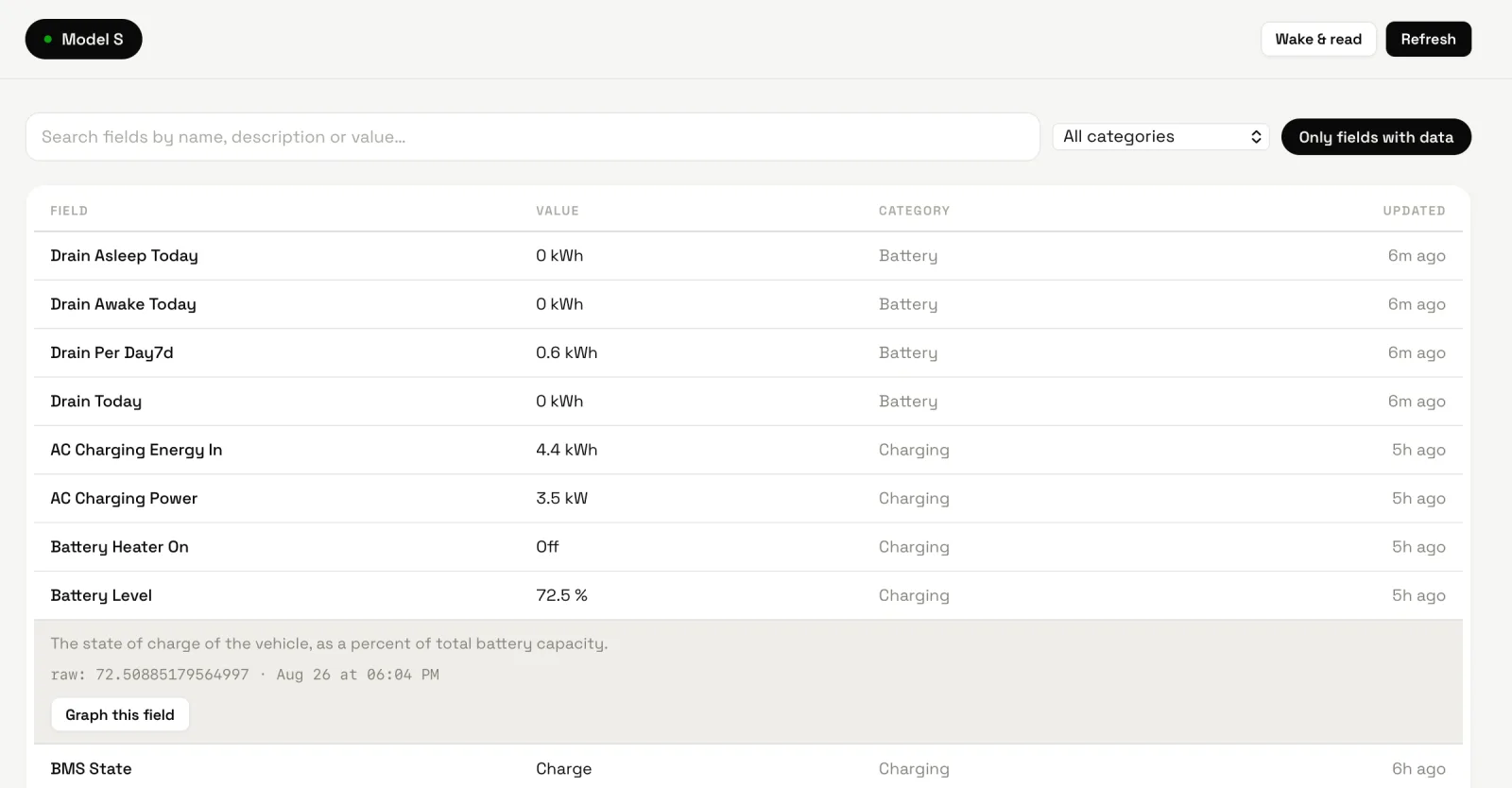
Data lists every field the car has ever reported — over 150 on a streaming car — with its current value, category and when it last changed. Filter with the search box (name, description or value), the category select or the Only fields with data chip. Click a row to open its description, the raw value with its exact timestamp and, for numbers and switches, Graph this field. Open rows stay open while the live values keep repainting around them. At the bottom, the car’s last full vehicle-data document can be expanded as JSON.
Graphs
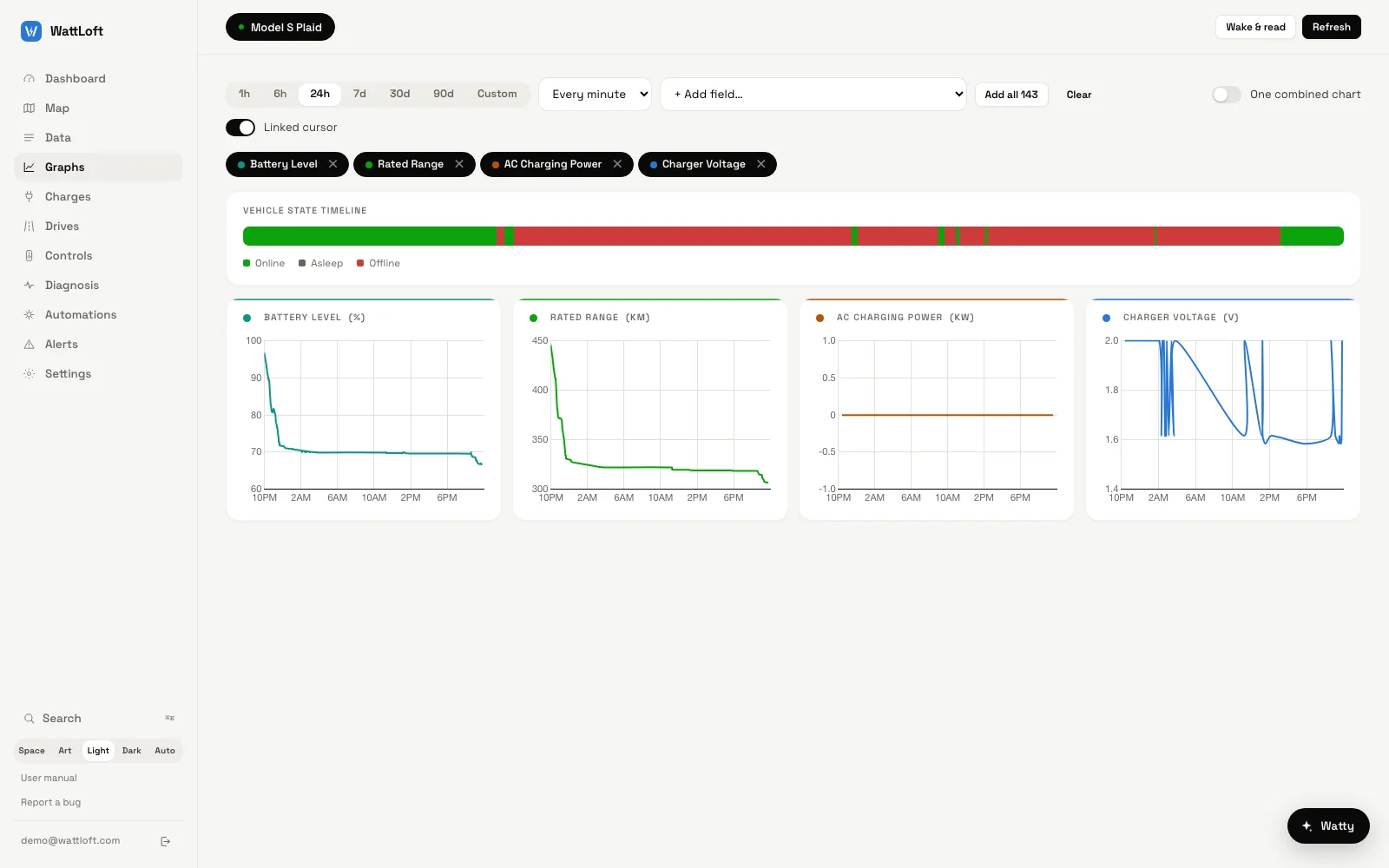
Graphs plots any fields side by side. Pick a range (1h, 6h, 24h, 7d, 30d, 90d or Custom) and a resolution (Auto detail, Every minute, Every 5 min, Every 10 min, Hourly, Daily, Weekly, Monthly), add fields with + Add field… (or Add all), and remove them from their chips. Each field gets its own chart with a readout in the corner; Linked cursor moves one crosshair across all of them. One combined chart overlays up to twelve fields, each scaled to its own range. The Vehicle state timeline strip above shows when the car was online, asleep or offline, so a flat line and a sleeping car are easy to tell apart. The range, fields and switches are remembered.
The derived fields
WattLoft folds a few things the car cannot know into the car’s own field list, so automations, rules, graphs, Data and Homey treat them like anything the car reports.
| Field | Unit | Meaning |
|---|---|---|
IdleDrainW | W | What the parked, not-charging car is drawing from the pack right now (0 while driving or charging). |
DrainToday | kWh | Energy lost while stationary since midnight — asleep and awake together. |
DrainAsleepToday | kWh | Lost while asleep or unreachable since midnight, from the BMS gauge before and after each sleep. |
DrainAwakeToday | kWh | Drawn while awake but not driving or charging since midnight (climate, heater, Sentry, computer). |
DrainPerDay7d | kWh | Average stationary loss per day over the last seven days. |
Weather, WeatherCode | — | Conditions at the parked car in words (Clear, Partly cloudy, Rain…) and as the WMO code. |
WeatherTemp, WeatherTempMax, WeatherTempMin | °C | Air temperature now, and today’s forecast high and low. |
Humidity, CloudCover | % | Relative humidity; share of the sky covered. |
SunPercent, Sunny, SunUp | %, yes/no | How sunny it is now (100 − cloud cover while the sun is up, 0 at night); Sunny is true at 70% or more; SunUp is true between sunrise and sunset. |
SolarRadiation, SolarToday | W/m², kWh/m² | Solar irradiance on a flat surface right now, and the energy expected today. |
SunshineToday, SunshineHoursToday, DaylightHours | %, h, h | Share of daylight with sunshine, hours of sunshine, hours between sunrise and sunset. |
Raining, Rain, RainChance | yes/no, mm, % | Raining now; rain in the last hour; highest chance of rain in the next three hours. |
RainInMinutes, RainSoon, RainStartsAt | min, yes/no, HH:MM | Minutes until rain (0 while raining, 1440 when none within 24 h); true within the hour; the local time it starts. |
RainToday, RainChanceToday | mm, % | Rain expected today and the highest chance of it. |
Sunrise, Sunset, WeatherUpdatedAt | HH:MM | Today’s sunrise and sunset at the car; when the weather was last refreshed. |
Weather is looked up once an hour per parked car, for the car’s position rounded to about a kilometre. A car that is driving is left alone — its own outside-temperature sensor is the better instrument on the road.
Storage floors
Live values are never thinned, but what is written to history is: a numeric reading is stored at most once per floor, and the floor depends on what the car is doing — every 5 seconds while driving (so replays and peaks keep their detail), every 30 seconds while charging, every 60 seconds parked or idle. State changes are always stored. The service’s administrator can change the three floors and the retention window under Settings → Storage.
9Automations
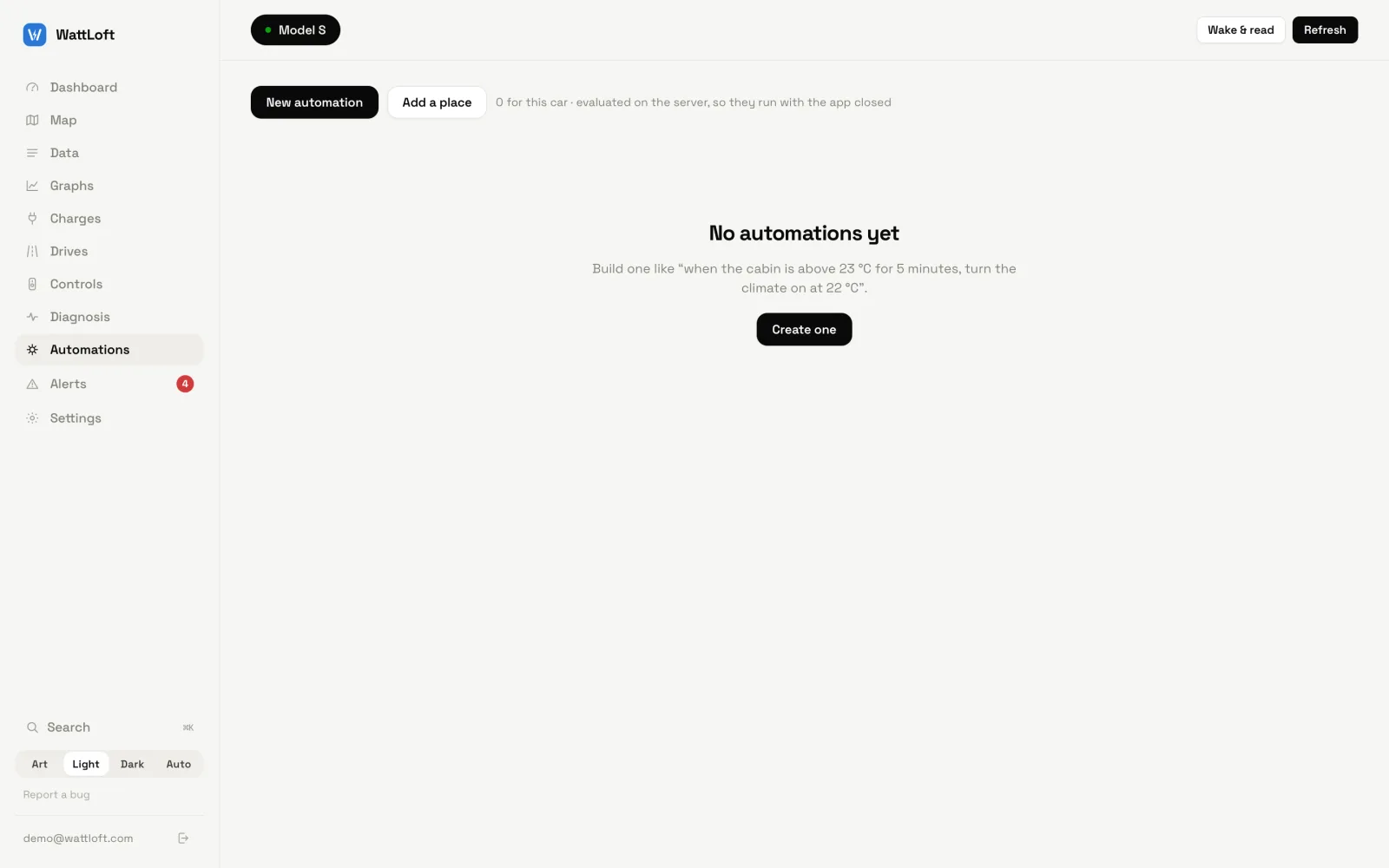
An automation is “when X, do Y”: a trigger fires, optional conditions gate it, and one or more actions run in order. Everything is evaluated on the server, so an automation works with every app closed. Two safeguards matter because these actuate a real car: edge-triggering (a value automation fires on the transition into its condition, not again and again while it holds) and a cooldown (the least time between two runs, 15 minutes by default).
The builder
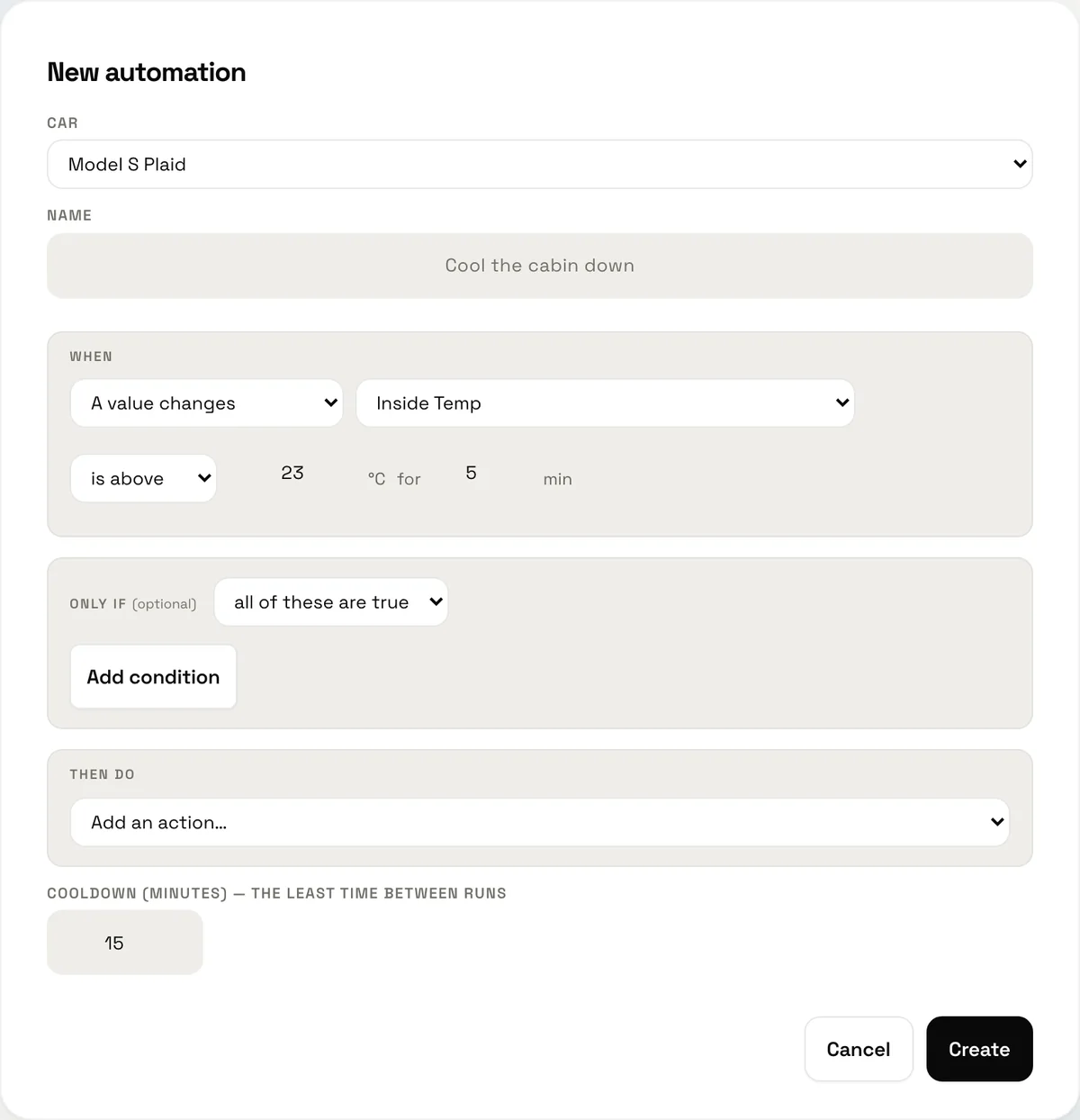
New automation opens the editor. Give it a name, then:
- When — one trigger:
- A value changes — any field, grouped by category (Charging, Battery, Climate, Driving, Weather, Vehicle, Media, Software…), an operator (is above, is at least, is below, is at most, equals, is not, is on, is off), the value in your units, and optionally for N min (“cabin above 23 °C for 5 minutes”).
- At a time of day — a time and the weekdays.
- Every N minutes.
- Something happens — any notification rule from section 10: Drive started, Charge complete, Windows open and rain coming, Someone got in, and so on.
- The car arrives or leaves a saved place. Places are geofences: Add a place gives one a name, a position and a radius (150 m by default, 25 m minimum). Arrival and departure fire on the crossing, and never while the position is unknown.
- Sunrise or sunset, with an offset (“30 min before sunset”), worked out for where the car is — or for your first saved place while the car is away.
- Only if — conditions, joined with all of these are true or any of these is true: a value (same operators —
this is how you test the weather, the charger or the plug:
RainSoon is on,DetailedChargeState equals Charging,ChargePortLatch equals Engaged), where the car is (at or away from a place), time of day (a window, which may cross midnight) and day of week. - Then do — any number of actions, run in the listed order: every vehicle command the car supports (Climate on, Set temperature, Charge limit, Stop charging, Lock, Sentry mode, Vent / close windows…, with their arguments typed in your units), plus three the engine performs itself — Send a notification, Wake the car and Wait before the next action (up to 600 s).
- Cooldown (minutes) — 1 to 1440, default 15.
Auto-wake, “already set” and results
- A sleeping car refuses most commands, so the engine wakes the car by itself before the first real command and waits for it to answer. If the car dozes off between two actions, it is woken once more and the command retried. A notification-only automation never wakes the car — and never spends a Tesla call.
- A command the car already satisfies (the limit is already 80%, the doors are already locked) counts as done: the car answers “already set” and WattLoft records it as a success, not a failure.
- After the actions the car is re-read a few seconds later so the dashboard reflects what just changed.
- Every run lands in Alerts as “Automation: name — Triggered by …, Ran …”. The routine note is governed by the An automation ran rule; a failure is always reported. Run now on a card runs it immediately, ignoring the trigger but respecting the conditions.
Variables in messages
A notification’s text can quote the car: {car} is at {battery}, {range} left becomes “Model S is at 39 %, 168 km left”.
Under the message box a row of chips (Car, Battery, Range, Speed, Inside, Outside, Charging, Limit, Odometer, Weather, Sun now,
Solar, Sunshine today, Rain in, Rain at, Sunrise, Sunset, Drain today, Idle drain) shows each live value and inserts its placeholder;
All values… searches everything the car reports. A preview line renders the message with the values filled in.
Numbers are converted and labelled in your units ({speed} → “104 km/h”), switches read yes or no, and an
unknown name is left as written so a typo is visible rather than silently swallowed.
| Placeholder | Field | Example |
|---|---|---|
{car}, {name} | VehicleName | Model S |
{battery}, {soc} | BatteryLevel | 72 % |
{range} | RatedRange | 333 km |
{speed} | VehicleSpeed | 104 km/h |
{inside}, {temp} | InsideTemp | 21.8 °C |
{outside} | OutsideTemp | 33.5 °C |
{odometer} | Odometer | 85,012 km |
{charge} | DetailedChargeState | Charging |
{limit} | ChargeLimitSoc | 80 % |
{plugged} | ChargePortLatch | Engaged |
{packtemp} | ModuleTempMax | 43.5 °C |
{drain} | DrainToday | 0.4 kWh |
{idledrain} | IdleDrainW | 240 W |
{drainasleep}, {drainawake} | DrainAsleepToday, DrainAwakeToday | 0.1 kWh, 0.3 kWh |
{weather} | Weather | Partly cloudy |
{sun}, {sunny} | SunPercent, Sunny | 70 %, yes |
{solar}, {sunshine} | SolarRadiation, SunshineToday | 366 W/m², 64 % |
{rain}, {rainat} | RainInMinutes, RainStartsAt | 35 min, 17:00 |
{raintoday}, {rainchance} | RainToday, RainChance | 2.4 mm, 60 % |
{sunrise}, {sunset} | Sunrise, Sunset | 06:31, 20:12 |
{cloud}, {humidity} | CloudCover, Humidity | 30 %, 48 % |
{AnyFieldName} | that field | {ChargerVoltage} → 239 V |
Recipes
Windows open and rain coming — close them
When: Something happens → Windows open and rain coming (the rule watches every window and the forecast for the
car’s parking spot). Then do: Vent / close windows set to close, then Send a notification:
{car}: windows closed — rain in {rain} at {rainat}. Cooldown 30.
Precondition at 7:30 if it is sunny
When: At a time of day → 07:30, Monday to Friday. Only if: a value → Sunny is on (or SunPercent is
above 70; add OutsideTemp is below 10 if you only want it on cold mornings). Then do: Climate on, then
Send a notification: Warming {car} — {weather}, {outside} outside, sun {sun}. The engine wakes the car first.
Tell me when something keeps the car awake
The quickest way is the built-in rule Awake drain above (for 15 min) with a watt figure of your choice — it names what is
running. As an automation, for a custom message: When: A value changes → IdleDrainW is above 300 for 15 min.
Then do: Send a notification: {car} has drawn {drainawake} while awake today — {idledrain} right now. Cooldown 120.
Stop charging when the expensive tariff starts
WattLoft has no live electricity-price feed, so a price cap is expressed as the hours your tariff is expensive.
When: At a time of day → 07:00, every day. Only if: a value → DetailedChargeState equals Charging.
Then do: Stop charging, then Send a notification: Paused charging {car} at {battery} — peak rate until 23:00.
A second automation at 23:00 with Start charging resumes it, and your home rate in Settings prices the session correctly.
10Notifications & alerts
Rules are evaluated on the server on every change, so a trigger fires whether or not anything is open, and always lands in the Alerts tab. Whether it also reaches you — by push or email — is a separate choice, so you can keep a full log without being pestered.
The rules
Settings → Notifications lists every rule with a switch and, for the threshold rules, a number in your units. Rules are edge-triggered: they fire on the transition, not on every reading while a condition holds, and thresholds latch — “battery below 20%” fires once on the way down and re-arms only after the level rises back above 20%. The thresholds are yours: each account keeps its own copy, and the service’s defaults stand in until you save.
Unresolved threshold warnings remain quiet across server restarts. A left-open or left-unlocked reminder re-arms when the car reports closure or locking; someone returning to the car does not repeat it. “Any tyre below” re-arms only after all four tyres recover at least 0.1 bar (about 1.5 psi or 10 kPa) above the chosen line, so small fluctuations do not keep notifying.
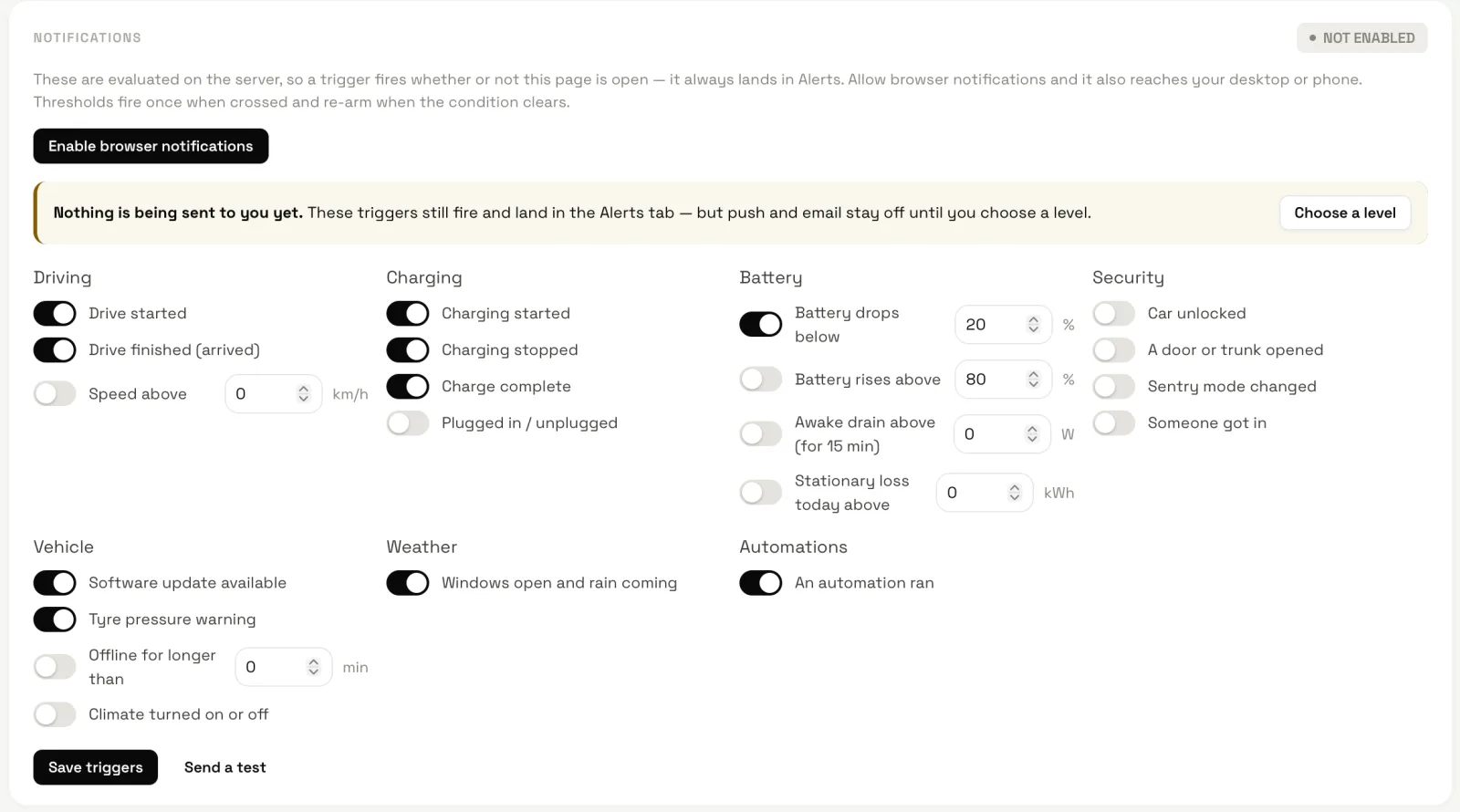
| Rule | Group | Default | Fires when |
|---|---|---|---|
| Drive started | Driving | on | The car shifts out of Park. With navigation active, includes the destination, estimated time remaining and battery on arrival when the car supplies them. |
| Destination added or changed | Driving | on | A destination is selected or changed during a drive. Sends one update with current estimates; routine ETA and arrival-battery changes stay quiet. |
| Drive finished (arrived) | Driving | on | The car goes back into Park; the detail carries distance, time, energy and the place when known. |
| Speed above | Driving | 0 (off), km/h or mph | The speed exceeds your figure; re-arms when it drops below. Warning. |
| Charging started | Charging | on | The charge state becomes Charging (“At 62%”). |
| Charging stopped | Charging | on | Charging ends before it is complete — an interrupted charge. Warning. The detail carries the session: kWh added, how long, what it cost. |
| Charge complete | Charging | on | The car reports the charge complete; the detail carries the session — kWh added, how long, what it cost. |
| Plugged in / unplugged | Charging | off | The cable goes in or comes out. |
| Battery drops below | Battery | 20 % | The level falls under your figure; serious below 10%. |
| Battery rises above | Battery | 80 % | The level climbs over your figure. |
| Awake drain above (for 15 min) | Battery | 0 (off), W | The parked car has drawn more than your figure from the pack for 15 minutes: “Something is keeping the car awake — drawing 240 W while parked for 15 min — climate, Sentry on”. Re-arms when the draw drops or the car sleeps. |
| Stationary loss today above | Battery | 0 (off), kWh | Today’s stationary loss passes your line; the detail splits it into asleep and awake. |
| Car unlocked | Security | off | The lock state changes (unlocking is a warning, locking is information). |
| A door or trunk opened | Security | off | A door, the trunk or the frunk opens, naming which. |
| Sentry mode changed | Security | off | Sentry is armed or disarmed. |
| Someone got in | Security | off | The car reports a person present. Warning. |
| Software update available | Vehicle | on | A new update version is offered. |
| Tyre pressure warning | Vehicle | on | The car raises a low-pressure warning; the detail says how many tyres. |
| Offline for longer than | Vehicle | 0 (off), min | The car has been out of contact for that long; checked on a timer, so it fires without new data. |
| Climate turned on or off | Vehicle | off | The climate system starts or stops. |
| Windows open and rain coming | Weather | on | Any window is open and it is raining at the car, or rain is expected within the hour: “a window is open and rain is coming — expected in about 35 min (around 17:00)”. |
| An automation ran | Automations | off | The routine note after a successful run. Failed runs are always reported. |
| Opt-in rules — all off until you switch them on; a threshold rule starts from a suggested figure in your units. Thresholds marked “yours” are stored in your own unit. | |||
| Charge almost done (minutes left) | Charging | 0 (off), min · suggests 15 | While charging, the car's own estimate drops under your figure — time to walk back to the Supercharger. Once per charge. |
| At home, not plugged in, below | Charging | 0 (off), % · suggests 30 | Parked where you normally charge at home, under your level, unplugged for 15 minutes. Home is the middle of your home charging sessions — nothing to set up. Warning. |
| Range drops below | Battery | 0 (off), km or mi (yours) · suggests 80 km | Rated range falls under your figure; serious under half of it. Re-arms when it rises back. |
| Moved while parked, more than | Security | 0 (off), m · suggests 250 | The parked car's position moves more than your figure from where it settled, with no drive recorded — a tow, a theft, a valet. Serious. The first fix five minutes after parking is the anchor, so GPS drift and a closing drive never count. |
| Left unlocked for | Security | 0 (off), min · suggests 10 | Parked, unlocked, nobody inside, for that long. Warning; re-arms when locked. |
| Door, trunk or frunk left open for | Security | 0 (off), min · suggests 5 | Parked with something open and nobody inside, for that long — naming which. Warning. |
| Any tyre below | Vehicle | 0 (off), bar/psi/kPa (yours) · suggests 2.2 bar | Any tyre's pressure reads under your figure, naming the tyres. Warning; re-arms when all are back above. |
| Odometer milestone every | Vehicle | 0 (off), km or mi (yours) · suggests 10,000 km | The odometer crosses the next multiple of your figure: “passed 60,000 km”. |
| Daily summary at | Summaries | 0 (off), hour · suggests 8 | Yesterday in one line, per car, at the hour in the box (1–24; 24 is midnight): distance and drives, energy used, energy charged and its cost, standing loss, and the level now. Nothing is sent for a day nothing happened. |
Rules save by themselves a moment after you flip a switch or change a figure, on the web as in the apps; Send a test raises a sample alert so you can see how one looks.
Notification sounds
On iPhone and Mac every kind of alert has its own WattLoft sound, all built on the same rising two-note chime, so you can tell what happened before you look: a soft spin-up when a drive starts and the chime falling home on arrival; a rising arpeggio when charging starts and a fuller one when it completes; a power-down when charging stops early; a key-fob chirp up for unlocked and down for locked; raindrops when a window is open and rain is coming; a sparkle for a software update. Anything serious or critical plays one urgent sound whatever its rule.
Settings → Notification sounds picks WattLoft sounds (one for each kind of alert), WattLoft chime (one chime for everything; serious alerts keep theirs), Device sound or None, and a Volume of Soft, Normal or Loud. iPhone and Mac play every notification at the system alert volume and let no app change it, so Volume chooses a softer or louder version of WattLoft's sounds within that. Hear the sounds plays each one. The choice belongs to your account and applies on the web, iPhone and Mac alike; browsers keep their own notification sound. An app older than 1.8.36 plays the standard sound.
Delivery
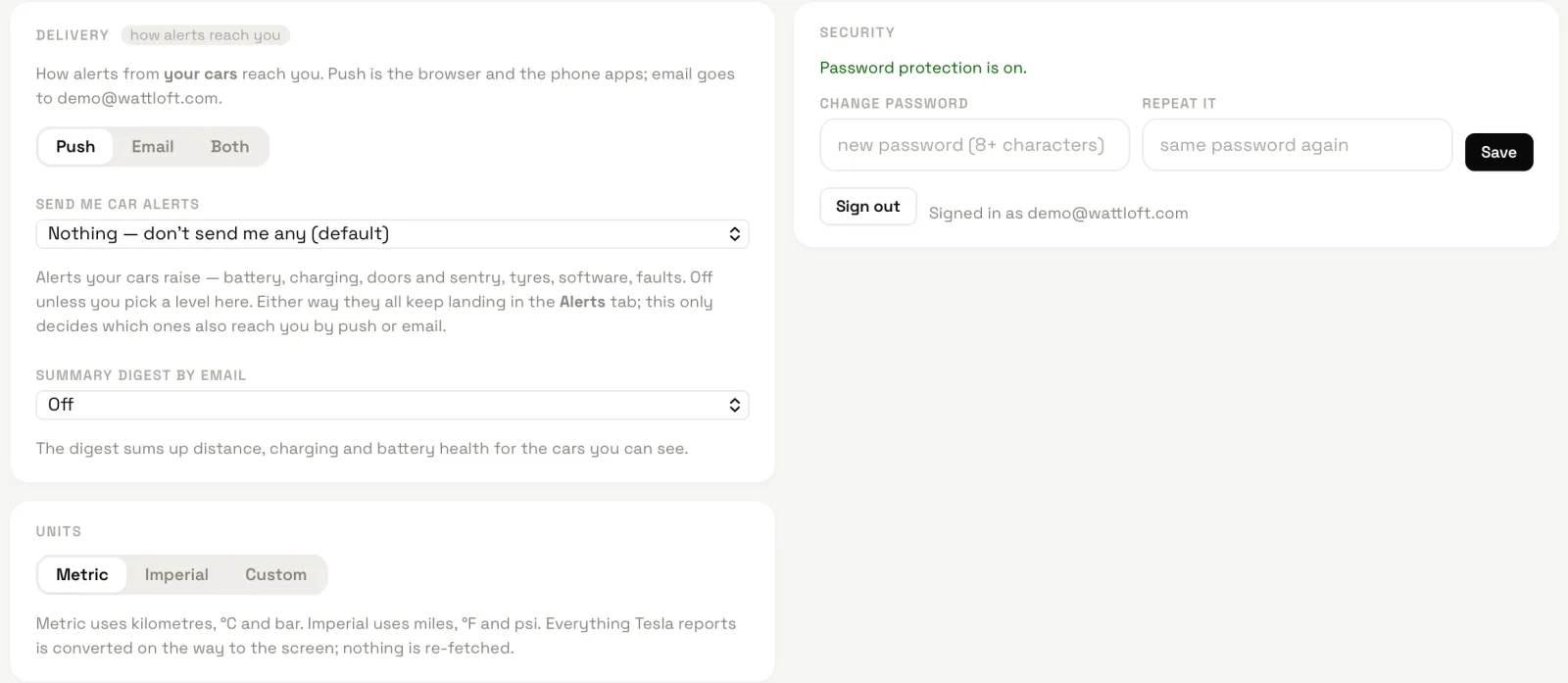
The Delivery card decides how alerts reach you: Push (the browser, once you press Enable browser notifications and allow it, and the phone apps), Email, or Both. The level Automatic alert notifications starts off; enabled driving, charging and other notification rules are sent independently. For additional automatic alerts, pick Every alert from my cars, Warnings or worse, Serious or worse or Critical only. Either way every alert keeps landing in the Alerts tab. Summary digest by email sends Weekly (Mondays) or Monthly (1st) a round-up of distance, charging and battery health for the cars you can see. Alert text speaks the car owner’s units, since everyone who can see the car gets the same text.
The Alerts page
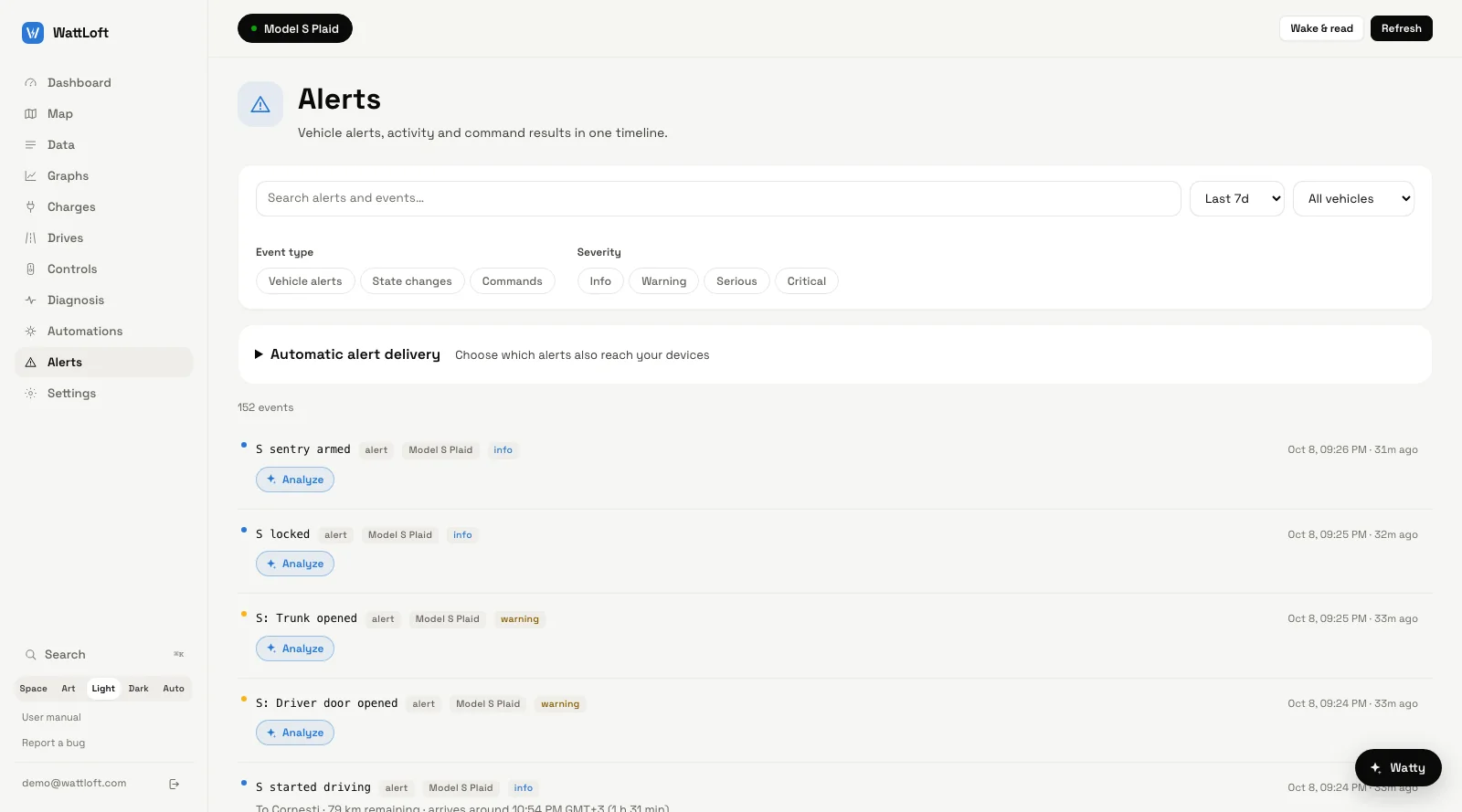
Everything — rule alerts, alerts from the car itself, state changes, command results and automation runs — is one searchable list. Filter by range (Last 24h to All time), vehicle, kind (Vehicle alerts, State changes, Commands) and severity (info, warning, serious, critical); click a row for the raw record; Load more pages back in time. The bar at the top shows the delivery level and lets you change it without leaving the page. The red badge on the tab counts new events and clears when you open the list — nothing needs acknowledging.
The phone app raises its notifications itself from your account’s alerts (in the foreground and on background refresh) and has the same level picker in its Settings; the Mac app checks every 15 minutes while it is open.
12Settings
Settings is a stack of cards. Your own account sees, in order: Tesla accounts, Notifications, Delivery, Security, Units, Electricity rates, Import & export, a Virtual key list while any car is unpaired, and Vehicles (VIN, model, firmware, last read). The service’s administrator also sees the installation cards — polling cadence, storage floors, people and access, the AI analyst, email, the system log, public access and live telemetry.
- Units — Metric (kilometres, °C, bar), Imperial (miles, °F, psi) or Custom to mix: distance km or mi, temperature °C or °F, pressure bar, psi or kPa. Everything Tesla reports is converted on the way to the screen; nothing is re-fetched. New accounts use IP country, then device/browser region, for the initial choice; no location prompt is needed. Saved choices follow you to the apps, widgets and email digest. Demo choices stay in your browser or app installation and never affect other visitors.
- Currency & rates — see section 5.
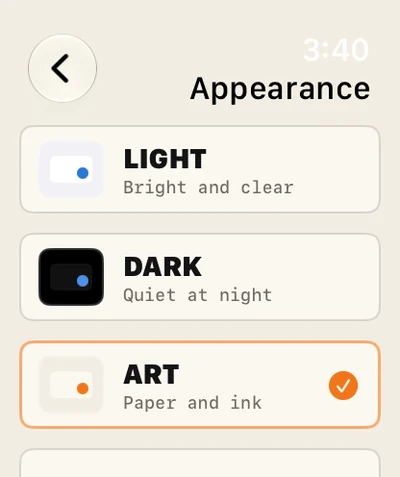
- Theme — not a Settings card but the switch at the bottom of the sidebar (in the More sheet on a phone): Art, Light, Dark, Auto. Auto follows the system; pick one to pin it. Art sets the numbers in poster type and paints the driving strip orange. The theme is saved to your account and shared by the web, the Mac, the iPhone and the Watch.
- Storage floors — the three write cadences of section 8 and the retention window; administrator only.
- AI — the analyst is configured for the service by its administrator (provider, model, whether it may research online, the daily quotas). Choose an API-key provider, ChatGPT subscription (experimental), or Grok / SuperGrok. Subscription connections belong to this WattLoft server and require browser approval. ChatGPT also requires the Codex runtime on the server. Admins have no WattLoft question quota; provider plan limits still apply. You only see Analyze buttons when it is on.
- Tesla connection — every Tesla login you connected, with Re-connect (when Tesla invalidates a token, or to grant command scopes you skipped), Disconnect and Remove. Cars are always attached to the Tesla account that found them. Your own Tesla developer application, if you use one, is entered here.
- Account — Security changes your password (eight characters or more) and signs you out. There is no self-service delete: email [email protected] from the account’s address to have a car’s history or the whole account removed, as the privacy policy describes.
Import & export
Import. The Import & export card takes two kinds of zip (up to 95 MB): a Tessie export — in Tessie, Settings → Download data, a folder per car named by its VIN with its driving, charging, climate, battery and vehicle states as CSV — or a WattLoft export made by Export below, on this server or another. Leave the choice on Auto-detect and WattLoft looks inside and works out which it is; pick Tessie or WattLoft export and it checks the zip is that kind, offering to read it the other way if it is not. Either way it shows you what it found — the drives, charges, distance, energy, alerts and readings it would add, and what it leaves out — before anything is written; only Import adds them. The car must be one you can control.
- Nothing is doubled. From Tessie, WattLoft works out drives and charges the way it does live (a drive from leaving Park to parking again, a charge while the car says it is charging, a pause on the same plug-in kept inside one session) and adds only history from before the car’s own WattLoft record began — from that moment on, its own measurements are kept, and a Supercharger session Tesla already billed stays as Tesla recorded it. Importing the same Tessie export again, or a newer one of the same car, replaces the earlier import. From a WattLoft export, every drive, charge, alert and reading is checked row by row against this server and only the ones it does not have are added — the preview says how many are already here — so importing the same export twice adds nothing, and one that is all already here says so and imports nothing.
- What is kept. Drives and charges are kept for good, with every figure already worked out (distance, energy, peak power and regen, temperatures, cost). Readings — for Graphs, drive routes and replay, and charge curves — and alerts follow the server’s retention (section 8): anything older than it keeps is left out, since the next nightly cleanup would delete it anyway.
- Remove an import. Earlier imports lists each one with its source, span and counts; Remove… takes out exactly the drives, charges, alerts and readings it added, and nothing WattLoft recorded itself.
- Place names for drives and charges imported from Tessie fill in over the following minutes, a second per place as OpenStreetMap asks; a WattLoft export brings its own.
Export. Export packs one zip for every car you can see: manifest.json (what is inside, the
period and the units), account.json (your profile, settings, saved places, automations and imports) and, per car,
car.json (the last status snapshot, options and reference data), drives.csv, charges.csv,
events.csv and readings.csv — every stored reading as time, field and value. Choose the Period
first: All, This year, Last 12 months, or Custom for any two days
(whole days, in your time zone); only drives, charges, alerts and readings inside it are included, while settings, places and automations are
always whole, and the file is named after the period. Units are the ones Tesla reports (miles, mph, °C, kWh, bar) and times are UTC, with an
ISO copy of each. The zip downloads when it is ready and stays available for an hour — and it can be imported back into WattLoft, here or on
another server, to restore or move your history.
13Apps
The apps are the same product as connect.wattloft.com — the same account, cards, units, theme and dashboard layout — with the things only a device can do: Live Activities, widgets, complications and a watch on your wrist. Everything you can do on the web you can do in the apps.
iPhone
The iPhone and Apple Watch apps are on their way to the App Store; while the release is in preparation the Apps section of wattloft.com shows the current status. You sign in with your WattLoft email and password (or Try the live demo); a collapsed Server field is preset to connect.wattloft.com.
- Tabs — Dashboard, Map, Charges, Drives, Controls, More; More holds Data, Graphs, Automations, Alerts, Settings, Diagnosis and the theme switch.
- Dashboard — the web cards in your saved order, the driving strip and the full-screen HUD with its landscape cluster, sound toggle and keep-awake; the HUD keeps its own dark face whatever the theme.
- Map, Charges (with the drain card and charge curves), Drives with replay, Diagnosis with the same verdict thresholds as the web, Automations with the full builder, and Controls with the same quick tiles.
- Notifications — the app raises them itself from your account’s alerts, in the foreground and on background refresh; the level picker in its Settings mirrors the web.
- Car menu — the car pill opens a list with the same status captions as the web dropdown: Driving · 47 mph, Charging, Parked, Asleep, Offline.
Live Activities and the Dynamic Island
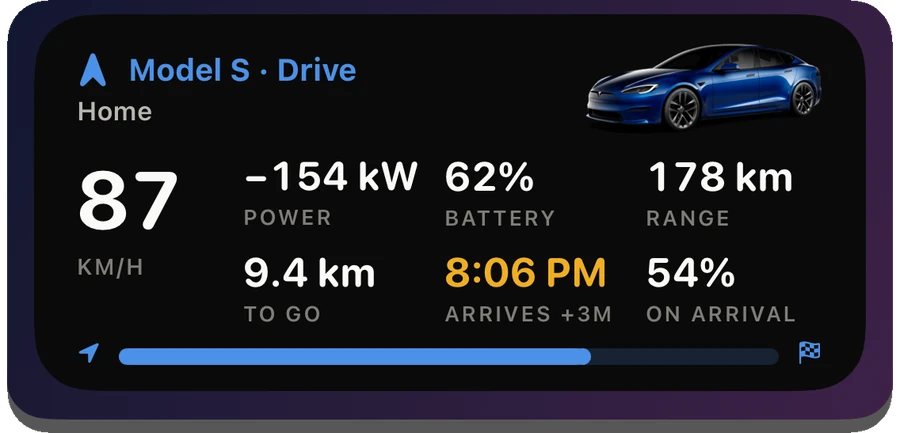
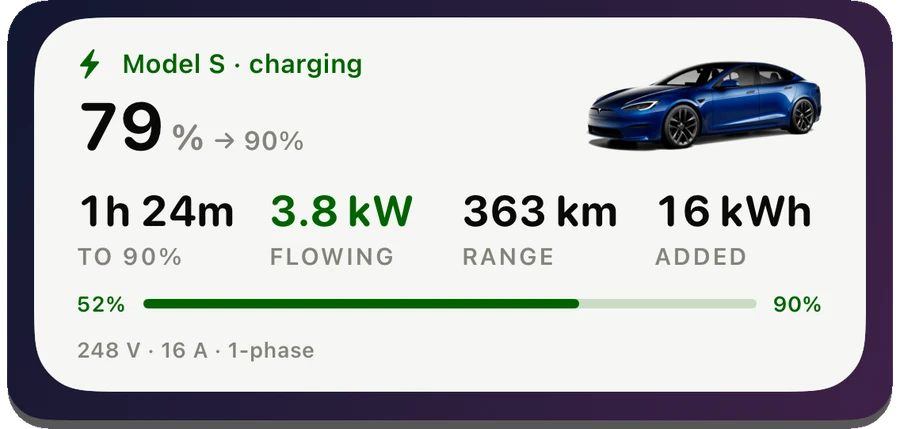
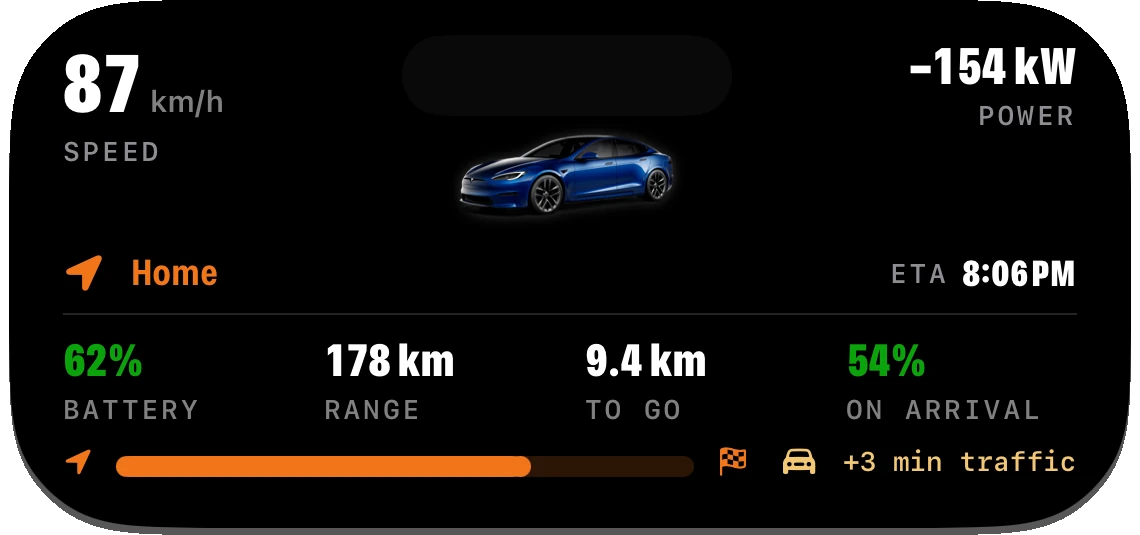
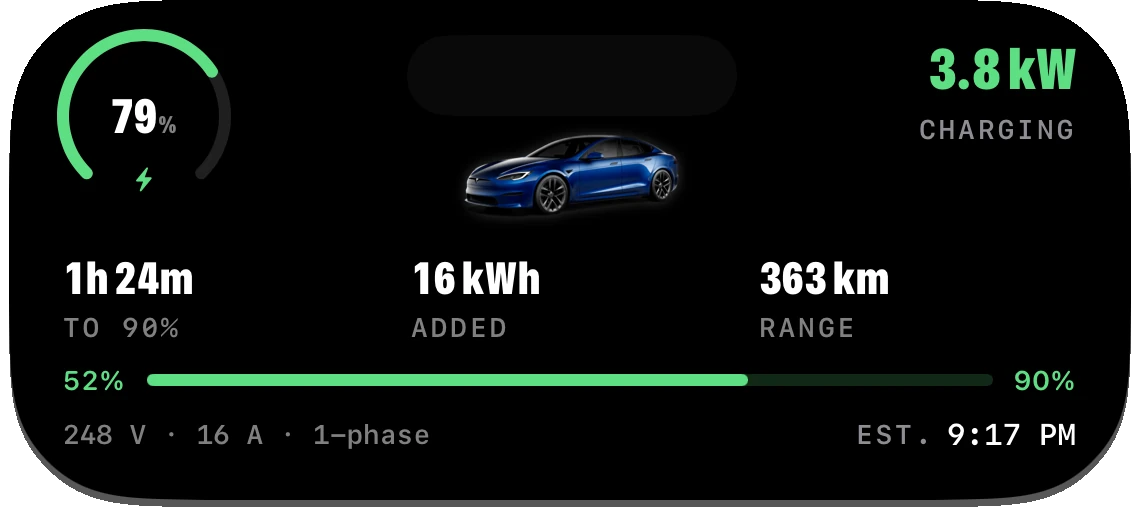
A drive or a charge becomes a Live Activity on the Lock Screen and in the Dynamic Island. Both are on by default and can be switched off separately in Settings → Live Activities (While driving, While charging), with a switch for each car. These preferences sync between the web, iOS and macOS. Switching one off ends its cards; switching it on allows an ongoing activity to appear again. Phone notifications remain independent. iOS must allow Live Activities and chooses which fit in Dynamic Island.
- Driving — speed, the destination line, battery, range, the battery on arrival and the car’s name; the expanded Island adds the signed power. The driving activity is painted in the accent colour.
- Charging — a ring filling toward the limit, supply V → flowing kW → pack %, a live countdown to the limit, the energy added and the range; the charging activity uses the system’s material.
- They are updated by the app itself (every 10 seconds while it is open, and on background refresh) and expire on their own when the data goes stale — 12 minutes for a drive, 45 for a charge. Tapping one opens that car.
Widgets
Four widget kinds, each with a per-widget car picker (edit the widget to choose): Battery (state of charge, range and health), Charging (progress toward the limit, power flowing, time to finish), Range & drives (range left, recent efficiency, the last trip) and Controls (lock, climate, charging and Sentry tiles on the Home Screen — a view-only account gets inert tiles; unlocking opens the app rather than firing blind). Battery, Charging and Range & drives also come in the Lock Screen sizes.
Apple Watch
The watch app runs on its own. A signed-in iPhone hands the session over automatically; without a phone nearby, Settings → Pair Apple Watch on the phone or Mac shows a six-digit code that works once, for five minutes. It opens on Now, and the rows beneath the car lead to the other pages:
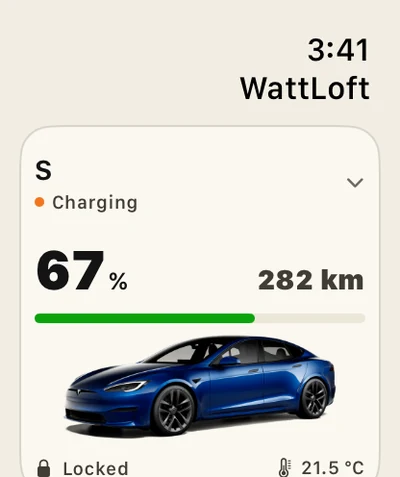
- Now — the car card: photo, one-word state, battery and range, charge flow and time to limit while charging; the driving strip at the top while moving. Swipe sideways to change car; tap the name for the car and settings sheet.
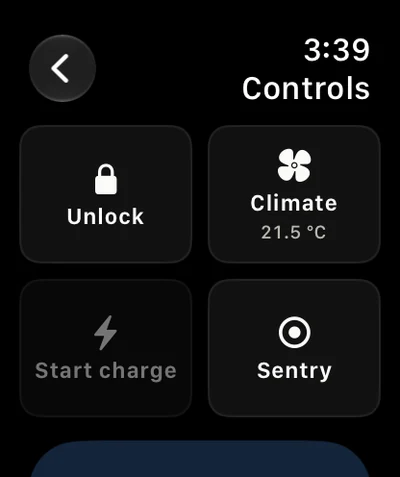
- Controls — the tiles you picked (following the phone by default): Lock/Unlock, Climate, Start/Stop charge, Sentry, Charge port, Flash, Honk, Max defrost, Wheel heat, Remote start, Vent/Close windows, Frunk, Trunk. Anything that opens the car asks first.
- Battery — range and health, charging with time to limit, climate and tyres. Tap Charge limit to change it with − / + or the Digital Crown, then Save limit.
- Activity — the last drive, the last charge and recent alerts. Appearance — Light, Dark, Art, Deep Space or Auto (following the iPhone).
Complications for every watch face — circular, corner, rectangular and inline — show Battery, Charging or Range & drives for the car you pick per slot, and open that page when tapped.
Siri and Shortcuts
On iPhone, Mac and Apple Watch, WattLoft answers Siri — say the app's name in the sentence:
- “How's my car in WattLoft?” — battery, range, locked or not, where it is parked and the cabin temperature; “Is my car charging in WattLoft?”, “Where's my car in WattLoft?”, “Is my car locked in WattLoft?”.
- “Lock my car with WattLoft”, “Unlock my car with WattLoft”, “Turn on climate with WattLoft”, “Start charging with WattLoft”, “Set the charge limit with WattLoft”, “Open the charge port with WattLoft”.
Answers use your units and never wake a sleeping car — an asleep car's reading says how old it is. Unlocking and opening the trunk or frunk ask for Face ID (or an unlocked watch) and a confirmation first. With several cars Siri uses the one selected in the app, or asks which. More actions — honk or flash, trunk and frunk, Sentry, windows, wake, tyre pressures — are in the Shortcuts app, where you can give any of them your own phrase. Settings → Siri & Shortcuts lists the phrases. The Watch runs them on its own, with or without the iPhone nearby.
Mac
Download the Mac app from wattloft.com/download/mac — a disk image, signed and notarized by Apple; open it and drag WattLoft to Applications. It needs macOS 14 or newer and runs on Apple silicon and Intel.
- A sidebar instead of tabs: Dashboard, Map, Controls, Diagnosis; History — Charges, Drives, Graphs, Data; Watch — Alerts, Automations; then Settings, the search, the theme grid and your account. Cars are switched from the pills at the top.
- ⌘K opens search, ⌘R refreshes the screen, ⌘, opens Settings, ⌘1–⌘9 open the pages in sidebar order (the Go menu lists them) and Esc closes the HUD and sheets.
- The HUD opens as a sheet from the driving strip and, being wide, always shows the landscape gauge cluster.
- Home-screen widgets in the system sizes; notifications while the app is open; Pair Apple Watch is offered here too.
14Homey
The WattLoft app for Homey makes every car a Homey device — 74 capabilities and 113 Flow cards, live from your WattLoft account. Fields carry their units, so a Flow reads kilometres or miles, °C or °F, exactly as you set the device. It runs on any Homey Pro (2016–2019 and 2023) and on Athom’s self-hosted Homey server; Homey Cloud with a Homey Bridge cannot run community apps, which is Athom’s restriction.
Install
The app is installed onto your Homey from a computer, with Athom’s official Homey tools. You do this yourself; one command does the lot — it checks for Node.js, fetches the Homey tools, downloads the app, signs you in to your Athom account and installs.
# macOS & Linux — Terminal
curl -fsSL https://wattloft.com/homey.sh | bash

# Windows — PowerShell
irm https://wattloft.com/homey.ps1 | iex
A browser window opens once for the Athom sign-in (the account your Homey belongs to); with several Homeys on the account the
installer asks which. The install is permanent, like a store app. Prefer to do it by hand? With Node.js 18 or newer:
npx --yes homey login, unzip the app from wattloft.com/download/homey, then
npx --yes homey app install inside the com.wattloft.tesla folder. The Homey page has
the full walk-through and the fixes for the usual complaints.
Add your cars
In the Homey app: Devices → + → WattLoft - Tesla. Enter the server address https://connect.wattloft.com and
sign in with your WattLoft email and password — not your Tesla or Athom login. Every car the account can see appears
preselected; tap Add. The login is stored on your own Homey and talks only to WattLoft. Repair on a
device re-points every car at once.
Device settings
- Display — Distance unit (km or mi), Temperature unit (°C or °F), Pressure unit (bar, psi or kPa), and the home radius for the At home capability (150 m by default).
- Updates — the read interval, 60 seconds by default (10 to 3600). Reads hit WattLoft’s cache, never Tesla; the app also keeps one live stream open, so values change the moment WattLoft has them. Only the Wake up button spends a Tesla call.
Capabilities
Charge, power, energy charged, pack voltage and current, inside and outside temperature, climate setpoint and on/off, locked, plug state — plus the WattLoft set: range and estimated range, odometer, speed, distance to destination, usable charge, charge limit and charging current (both settable), charging power and phases, energy added, energy in pack, pack capacity and battery health, time to full, charging state, plugged in, charging, charge port (settable), battery heater, pack temperature, preconditioning, max defrost, steering-wheel heater, seat heaters, climate keeper, doors, windows, frunk, trunk, someone in the car, the four tyre pressures and the tyre warning, Sentry, valet mode, vehicle state, online, live streaming, driving, gear, at home, software version and updates, destination and minutes to arrival, now playing, latitude and longitude. Buttons: Wake up, Refresh from car, Honk, Flash lights, Open frunk, Open trunk, Vent windows, Close windows, Remote start.
Flow cards
- Triggers (35) — the battery dropped below / rose above a level; a WattLoft alert of at least a severity (with name, detail, severity and kind as tokens); charging, driving, plug, lock, door, window, update and tyre events; and the field cards: The value of [field] changed, rose above [value], dropped below [value].
- Conditions (18) — the car is / is not charging, plugged in, being driven, locked, online, on the live stream, at home; Sentry armed; the climate on; a door or window open; an update available; a tyre warning active; the battery, range or charge limit above a value; The value of [field] is above [value] and is [value].
- Actions (60) — charge limit and amps, start and stop charging, temperature, climate, defrost, seats, locks, Sentry, media, navigation, software, and a generic Send the [command] with [args].
Thresholds on the field cards are typed in the device’s display units and converted back before comparison. The field picker offers a curated list first — including the drain fields Idle drain now, Stationary loss today, Asleep loss today, Awake idle loss today and Stationary loss per day — and then everything the car is reporting, the weather fields included.
Update or reinstall
Run the one-liner again (or homey app install in the app folder): devices, Flows and the login survive an update.
homey app install --clean wipes the stored data, after which the cars must be paired again.
15Streaming vs polling
A car reaches WattLoft through one of two pipes, and the hero badge tells you which.
- ● Live telemetry — the car is on Tesla’s Fleet Telemetry and pushes its own readings the moment they change.
- Streaming · asleep — streaming is set up, but a sleeping car streams nothing; the moment it wakes, data flows again by itself.
- Periodic updates — the car is read through the Fleet API on a schedule (API polling).
- Live feed delayed — streaming is set up but has sent nothing current for a couple of minutes; WattLoft reads the awake car through the API until it returns.
Streaming
With streaming, the signals that make the dashboard feel live arrive every second: speed, pack voltage and current (so pack power is volts × amps, not an estimate), each motor’s current, the accelerator and the brake. Location and gear every five seconds, state of charge every ten, most charging, climate, window and temperature fields every 30–60 seconds, and slow-moving things — tyre pressures, isolation resistance, firmware, lifetime counters — every five to ten minutes. Signals are also on-change, so a quiet field costs nothing while it does not move.
Streaming needs the car’s virtual key (section 1) and recent firmware; once Tesla reports the key paired, WattLoft switches streaming on for that car by itself. Only a stream carries the fields the Battery pack (live) card, the per-motor split and most of Diagnosis rely on: pack voltage and current, the BMS energy gauge (which is also what measures charger efficiency per charge, asleep drain and BMS capacity), brick voltages and spread, module temperatures, isolation resistance, the drive-inverter currents and temperatures, pedal and brake, BMS state and the HV interlock.
Polling
Without a stream, WattLoft polls. A cheap vehicle-list call is the heartbeat: it carries each car’s state (online, asleep, offline) and does not wake anything. Vehicle data is fetched only while a car is already online — every five minutes by default, down to every 15 seconds while it is driving (the service’s administrator sets both). Nothing ever wakes a car to read it; waking is always your own button press. Alerts from the car and Tesla’s charge records are fetched every six hours. Tesla bills per request, and the API usage card keeps the count.
How they fit together
While a car’s stream has delivered data in the last two minutes, its regular polls stand down. Once an hour a safety poll still reads the few things streaming does not carry (the vehicle configuration and parts of the vehicle state). A manual Refresh or Wake & read always reads for real. When the stream goes quiet, normal polling resumes by itself.
16Troubleshooting
- A command is refused, or fails
- “The virtual key isn’t on this car yet — pair it first, then try again” means exactly that: pair the key (section 1) and press Check again. “Car controls not allowed” on the Controls page means the Tesla login was approved without commands: press Open Tesla account, re-connect it and allow vehicle and charging commands. “Connect Tesla to use controls” means no Tesla account is connected yet, and “View-only car” means the owner shared the car without control. “Failed: …” carries Tesla’s own reason — a car in Service mode or with a door open will refuse some things. A slow answer is usually a sleeping car being woken first; WattLoft retries for about 40 seconds.
- “The car was already at that value”
- Not an error. The car reported that the limit, lock or setting was already what you asked for, and WattLoft records the command as done.
- A 502 error, or a request that fails during an update
- While WattLoft is being updated the service restarts for a moment and a request can come back with a bare “502” or a plain error page instead of data. Wait a minute and try again; when the tab reconnects it shows “WattLoft was updated — reload to get the new version” with a Reload button — press it. Nothing you had set is lost.
- Data looks stale
- The hero says how long ago the car was last read. A sleeping car is not polled (on purpose), so its numbers are the ones from when it fell asleep; Streaming · asleep means the same for a streaming car. Refresh reads every car that is awake; Wake & read wakes this one. If a car has been out of contact for a long time, the Offline for longer than rule can tell you.
- A car without a paired key
- Typical for a car added later, or a Model 3 that was never paired while the others were: data works, the Diagnosis view is mostly “streaming only”, commands fail and the Battery pack (live) card stays locked. Pairing the key fixes all four.
- Charger efficiency says “assumed”
- The per-charge measurement needs the BMS energy gauge, which only a streaming car reports. On a polled car WattLoft reconstructs the wall energy from the charger power over each AC session and calls the figure measured only once several sessions agree; until then the standard 92% is assumed and labelled so. DC sessions are never measured.
- No weather on the card
- Weather is looked up for parked cars only — a driving car is skipped — once an hour, and needs a position. A car that has just parked gets its weather within the hour. The card is also empty when the service has weather switched off.
- Notifications never arrive
- Enable the notification rule and its car, choose Push or Both, and allow notifications in the browser or iOS/macOS Settings. Automatic-alert severity is separate: it can be off while enabled driving and charging notifications still arrive. For automatic warnings, also choose a suitable automatic-alert level. Everything still lands in the Alerts tab.
- Battery health says it cannot estimate reliably
- The variant could not be matched, or the result is implausibly high. Use Adjust “when new” to enter the usable capacity and range when new; the percentage becomes accurate from then on.
- The Map tab is gone after a reload
- A reload always lands on the dashboard; the Map tab is not remembered as the last view. Tap Map again.
- The demo will not let me do something
- The demo is read-only by design: one car, no commands, no settings, the theme not saved, and a small shared pool of AI questions. Create an account to get your own.
Write to us, or use Report a bug at the bottom of the sidebar.
17Glossary
- BMS
- Battery management system — the pack’s own computer. Its energy gauge (kWh remaining), brick voltages and module temperatures are what a streaming car reports “from the inside”.
- SoC — state of charge
- The battery percentage. The car reports a usable figure, which is what the dashboard shows.
- Usable capacity
- The kWh the percentage gauge spans, 100% to 0%. About 4.5% of the pack sits below 0% as a reserve and is outside both the measurement and the “when new” figures.
- Rated, estimated and ideal range
- Rated range is Tesla’s official figure for the current charge; estimated range takes recent driving into account; ideal range assumes ideal conditions. The WattLoft estimate applies your own measured consumption to what is in the pack.
- EPA and WLTP
- The US and European rating systems. Tesla’s range field is EPA miles everywhere, so WattLoft compares range against the EPA rating even for European cars — unless you enter your own “when new” range.
- Wh/km (Wh/mi)
- Consumption: watt-hours per kilometre or mile. Lower is better; 150–200 Wh/km is typical of gentle driving.
- Regen
- Regenerative braking — the motors turning motion back into charge. Shown in green as positive power on the strip and the HUD; the drive detail records the peak.
- Virtual key
- A cryptographic key you approve on the car from the Tesla app. It lets WattLoft sign commands and configure streaming.
- Vehicle Command Protocol
- Tesla’s signed command protocol, required on cars from about 2021. Every WattLoft command is signed.
- Fleet API / Fleet Telemetry
- Tesla’s official interfaces for third parties: the API answers requests (polling); Fleet Telemetry pushes the car’s readings as they change (streaming).
- Polling
- Asking the car for its data on a schedule — only while it is already awake.
- Aux draw
- Everything that draws from the pack except the motors: heater, climate, computers. Estimated as pack power minus the motors’ power.
- Brick spread / imbalance
- The difference between the strongest and weakest cell group (“brick”) in the pack, in millivolts. A small spread means a well-balanced pack.
- Module temperature
- The hottest and coolest thermistor readings inside the pack.
- TPMS
- Tyre pressure monitoring system — the car’s own sensors in each wheel. WattLoft shows the four pressures, the recommended cold pressures and the car’s low-pressure warning.
- Isolation resistance
- The electrical isolation between the high-voltage system and the chassis, in kΩ. High is healthy.
- Stationary (vampire, phantom) drain
- Energy lost while the car is neither driving nor charging — asleep, or awake with something running. Idle drain is the live version in watts.
- Charger efficiency, wall-side and pack-side
- What the wall metered in versus what the pack actually gained. Tesla’s energy counter is wall-side, so capacity maths scales it by the charger’s efficiency.
- Place (geofence)
- A saved position with a radius, used by automations for “arrives at” and “leaves” and for conditions.
- Cooldown
- The least time between two runs of the same automation.
- Edge-triggered
- Fires on the transition into a condition, not repeatedly while it holds; re-arms when the condition clears.
- Link session
- What a share link gives its holder: the app, scoped to one car, at the link’s level.
- Claimable link
- A share link that can attach the car permanently to the account of whoever opens it while signed in.
- Live Activity / Dynamic Island
- iPhone features that show a drive or a charge on the Lock Screen and around the front camera while it is happening.
- Complication
- A small readout on an Apple Watch face; WattLoft offers Battery, Charging and Range & drives.
- Flow
- A Homey automation, built from trigger, condition and action cards.